
Replace a long flat dashboard list with a readable nested structure derived from dashboard names.
What the product provides
- Nested, collapsible dashboard groups – the hierarchy comes from the slash in the dashboard name, nothing else.
- Drag and drop between groups – move a dashboard, or a whole group, with the mouse; the module performs the move as a rename through the Zabbix API.
- Create group and Edit group – open an empty group by path, and the pencil renames it together with every dashboard under it.
- A View | Edit switch like the Services list – handles and pencils appear only in Edit mode, and Zabbix remembers the choice per user.
- The collapse state of each branch is remembered for every user separately.
- Only the dashboard list page changes – the dashboards themselves stay untouched, nothing is migrated and nothing is patched.
How it works
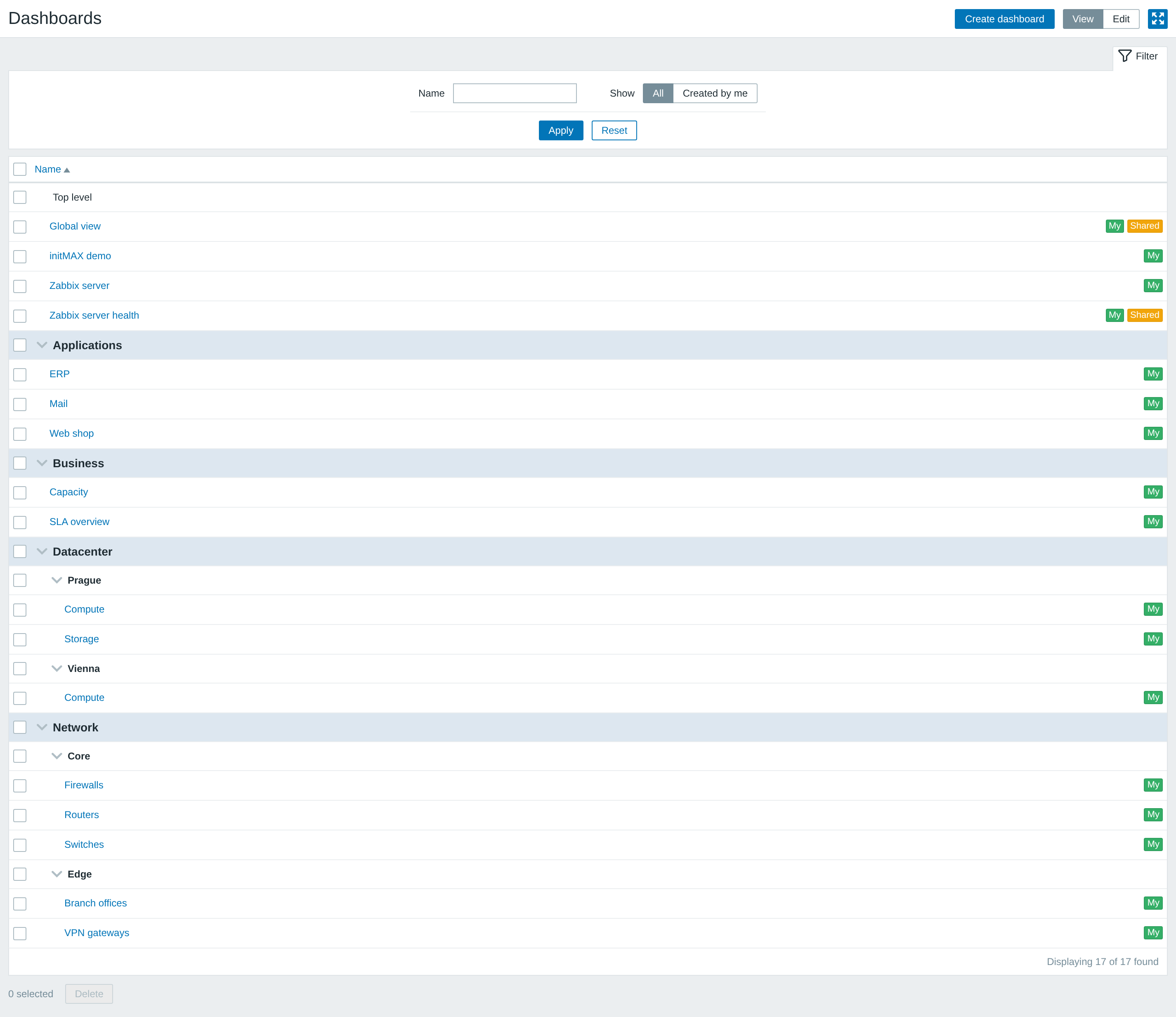
The module takes over a single Zabbix page – Dashboards → All dashboards. Groups are read from the dashboard names: the slash is the level separator, so a dashboard called Network / Core / Routers produces the group Network, the subgroup Core inside it and the dashboard Routers in there. No new data structure, no migration and no change to the dashboard content – it is a naming convention the module knows how to read.
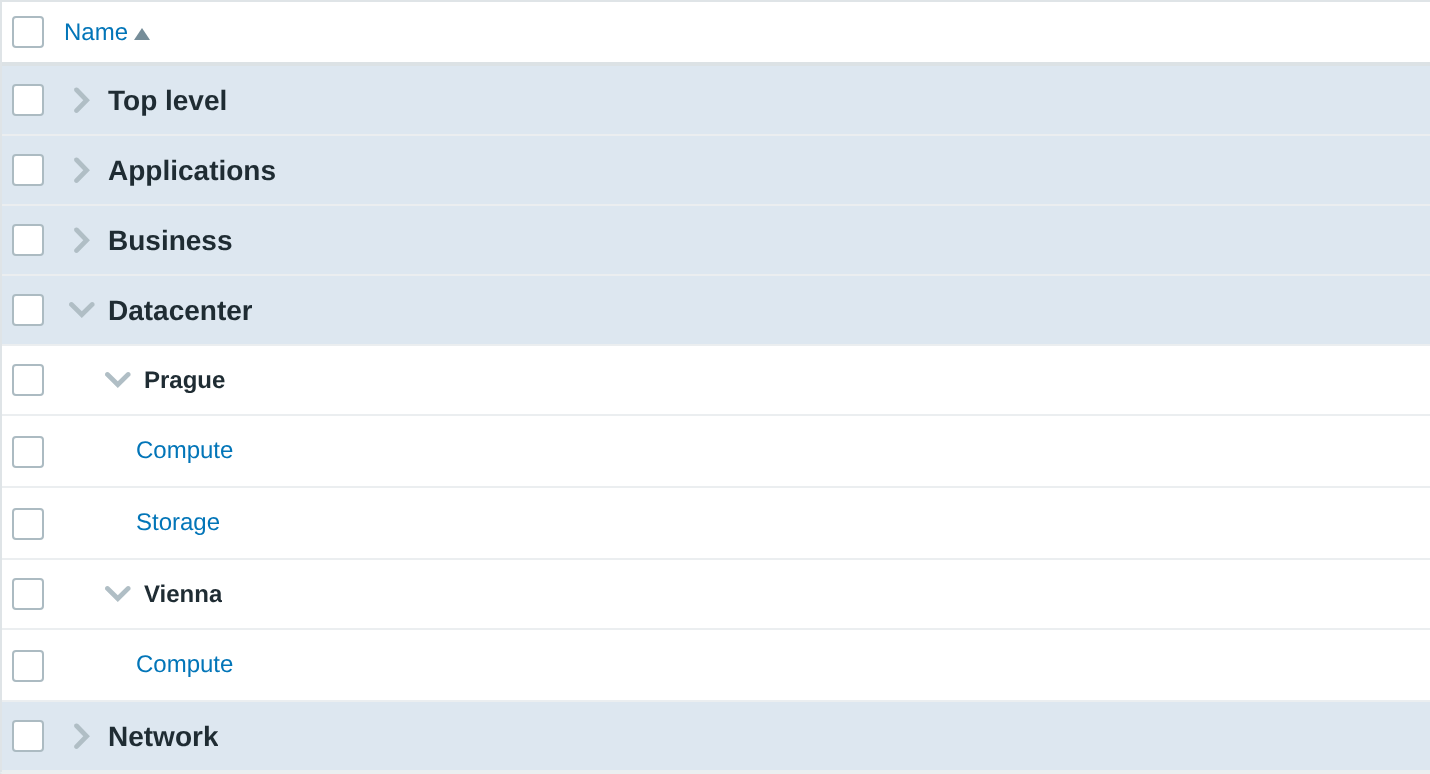
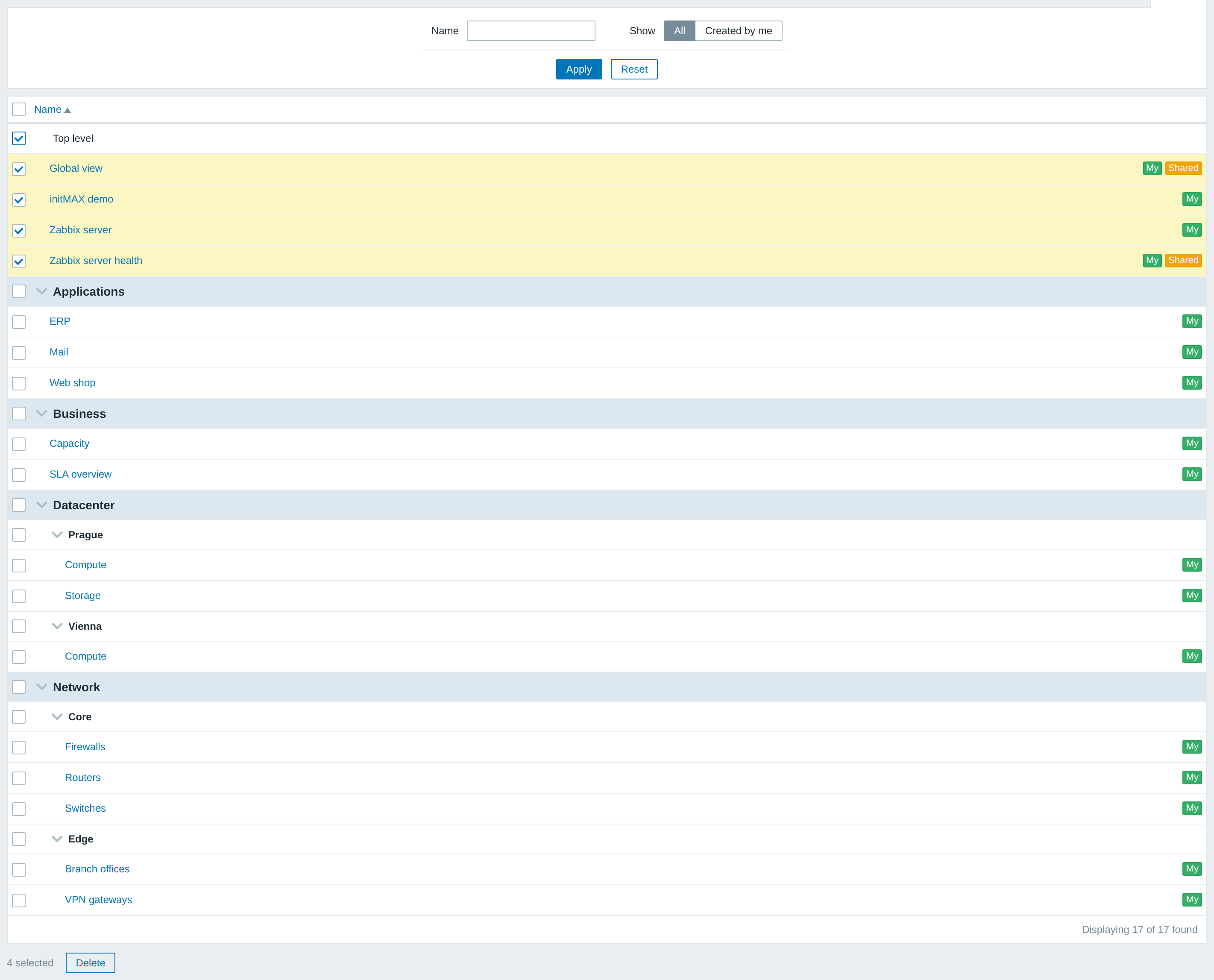
The list is one compact table: a Top level group for dashboards without a group – styled and collapsible exactly like any other top category – then the top-level groups (visually tinted) with their subgroups and dashboards indented below. Collapsing is done by the frontend’s own control – the chevron icon on 7.x, the treeview arrow on 6.0 – 6.4 – and Zabbix keeps the collapse state in the user profile, so it is personal to each user. A tick-box on a group selects every dashboard under it, so mass actions work on a whole branch.
Screenshots
Working with groups: edit mode, drag and drop, create
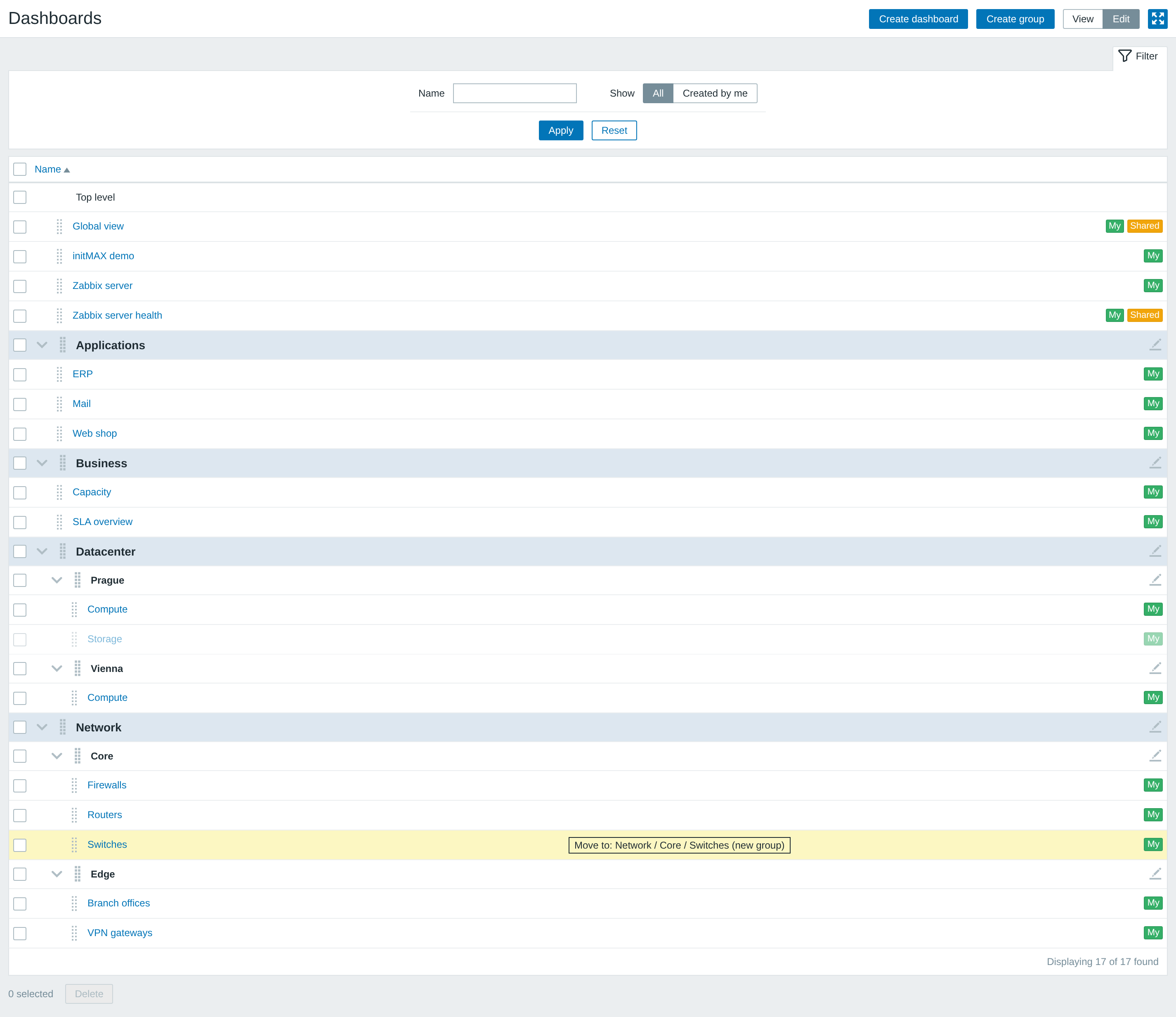
The View | Edit switch in the page controls works exactly like the one on Services. In View the list is a plain tree. In Edit every row gets a drag handle, every group a pencil, and a Create group button appears next to Create dashboard. Users who may not edit dashboards never see the switch at all, and Zabbix remembers the chosen mode in the user profile.
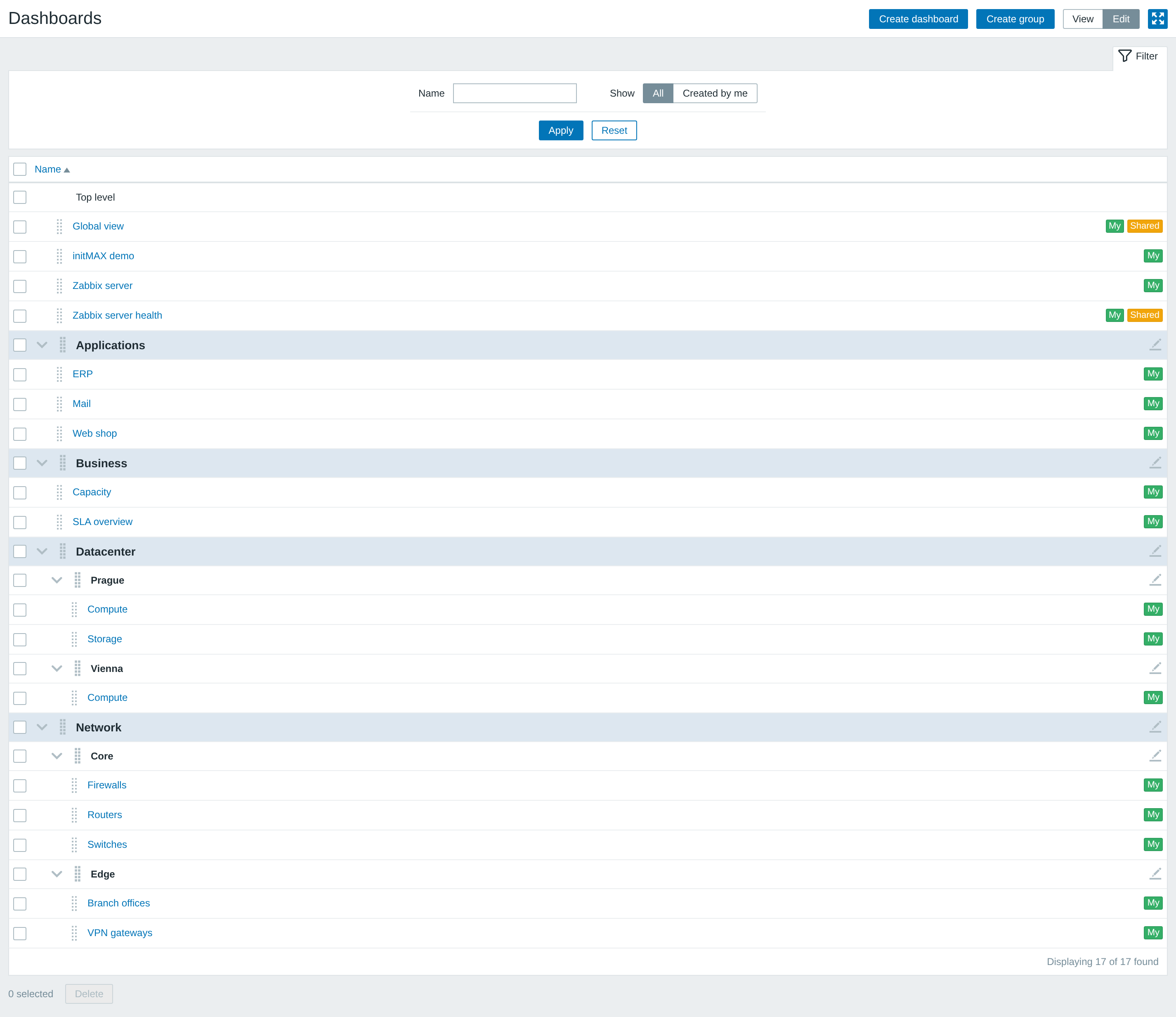
Moving by drag and drop. Drag a dashboard – or a whole group – anywhere into the target group’s block, onto the Top level group’s row, or onto the table header. The highlighted target block and the Move to hint on the hovered row show where it will land before you let go; each step left in the row gutter is one level up. A dashboard dropped on another dashboard opens a new group named after that target next to it and moves only the dragged dashboard into it. A collapsed group hovered for a moment opens for the drag. The move is always just a rename through the API and obeys the same permissions as editing a dashboard – on refusal Zabbix shows its usual message box.
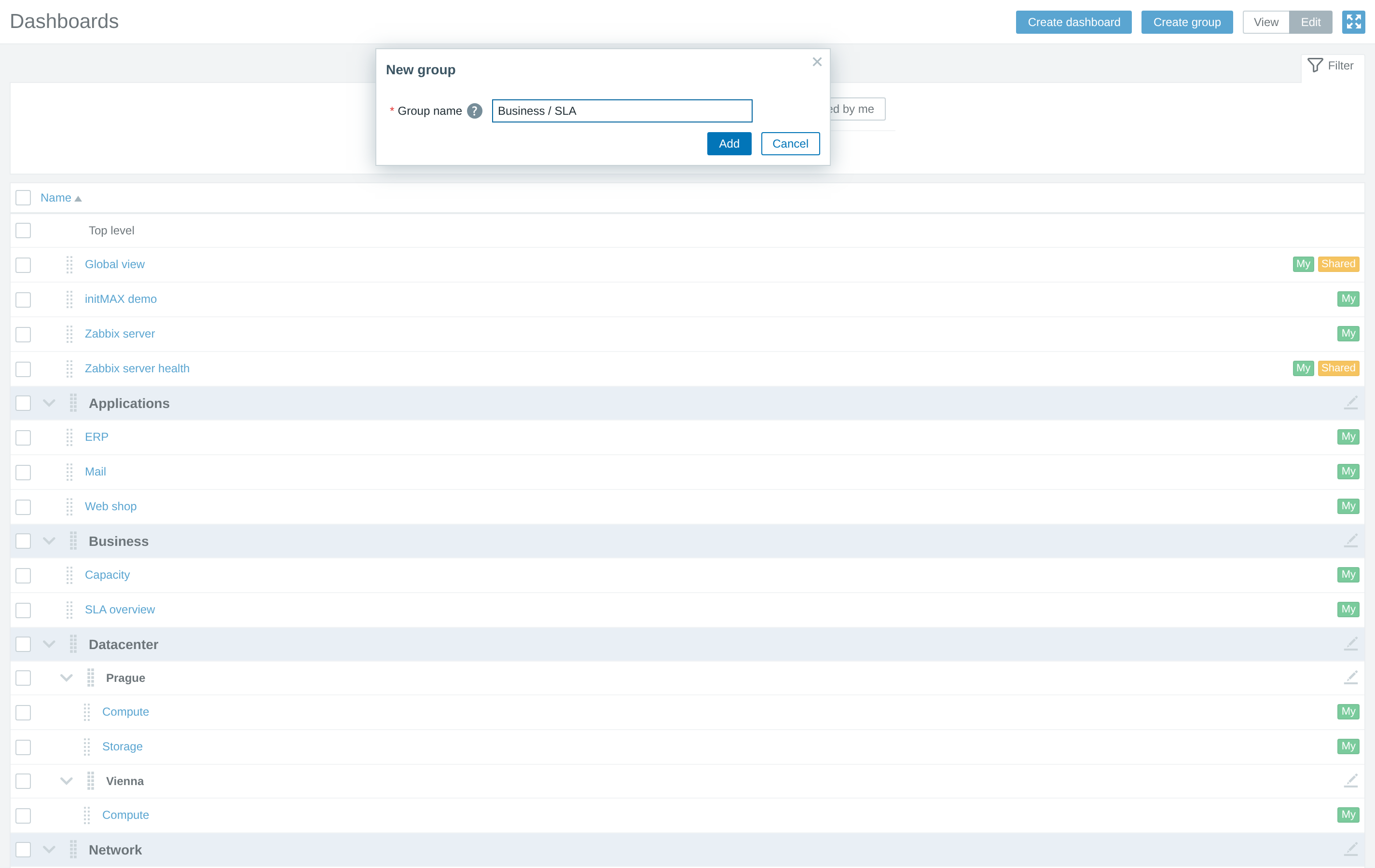
Create group. The Create group button opens a small dialog for a group path – Business / SLA nests straight under Business. An empty group stays in the list as a placeholder row until you drag something into it, and while it is empty it can be removed again. Placeholders are kept in the user profile, so they survive an HA failover. The pencil on a group renames its last segment – and with it every dashboard underneath; a name that already exists at that level is refused.
Installation
Structured Dashboard is distributed as a standard deb/rpm package from our repository repo.initmax.com. The package detects your frontend version and deploys the matching module tree into it. It supports Zabbix 6.0 – 8.0 and is HA ready – multi-frontend / HA setups work out of the box, just install the package on every frontend node.
Connect to the server running the Zabbix frontend over SSH (do this on every frontend node) and pick your distribution. Would you rather have a plain archive? Every release also ships as a ZIP – FREE straight from the repository – handy for offline or manual installs.
RHEL / Rocky / Alma
# RHEL / Rocky / Alma
rpm -Uvh https://repo.initmax.com/zabbix/release/initmax-release-latest.noarch.rpm
dnf clean all && dnf install -y zabbix-module-structured-dashboard
SUSE
# SUSE
rpm -Uvh https://repo.initmax.com/zabbix/release/initmax-release-latest.noarch.rpm
zypper --gpg-auto-import-keys refresh && zypper install -y zabbix-module-structured-dashboard
Debian / Ubuntu
# Debian / Ubuntu
wget https://repo.initmax.com/zabbix/release/initmax-release-latest_all.deb
dpkg -i initmax-release-latest_all.deb
apt update && apt install zabbix-module-structured-dashboard
Verification
The module is enabled automatically during the package installation. You can verify it in the Zabbix frontend menu: Administration → General → Modules
If the module was already running on that frontend (from an earlier package or from a manual installation), the package keeps its state – a module you disabled on purpose stays disabled – and the old manual copy is cleaned up as well, so the module never shows up twice in the module list. Updates then arrive through your package manager (apt / dnf / zypper) like any other system package.