
Description
AI Problems Diagnostic Assistant adds an AI column to Monitoring → Problems: one click safely hands the event, trigger, related items and latest values to the model, and a structured recommendation comes back right inside Zabbix. It supports OpenAI, Google Gemini, Anthropic Claude and self-hosted OpenAI-compatible endpoints, streams the answers, and can verify live Zabbix data through an MCP server. Every AI and MCP call is made by the Zabbix PHP backend – the API key and internal endpoints never reach the browser. One PRO package supports Zabbix 6.0 – 8.0 and is HA ready.
Usage examples
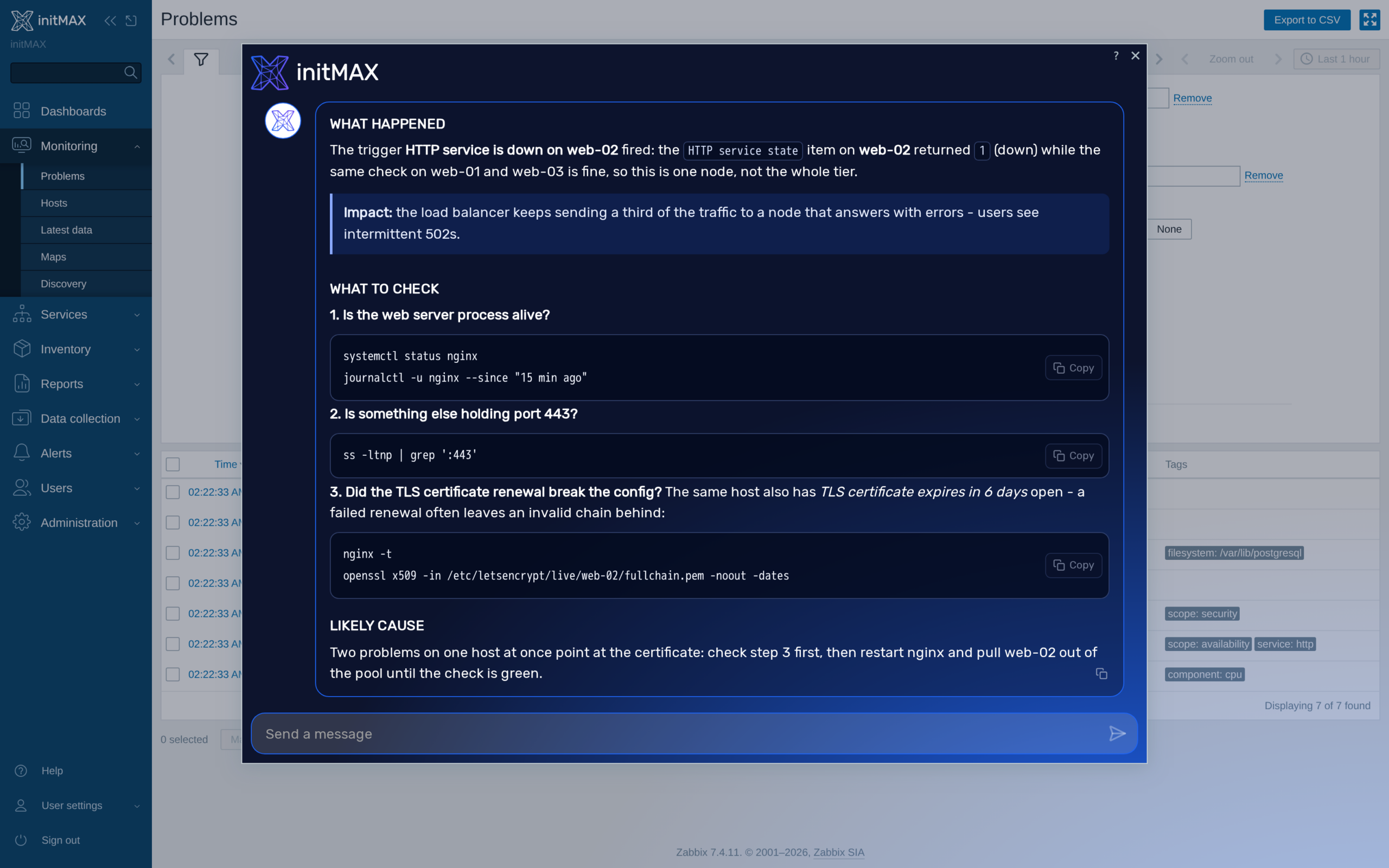
To utilize this module use the yellow button ‘AI Assistant’ next to problem’s name. New window opens with several sections:
- Brief interpretation of the problem
- Potential impact if not addressed
- Suggested solutions or troubleshooting steps
- Hints for further troubleshooting in form of additional questions that can lead to solution
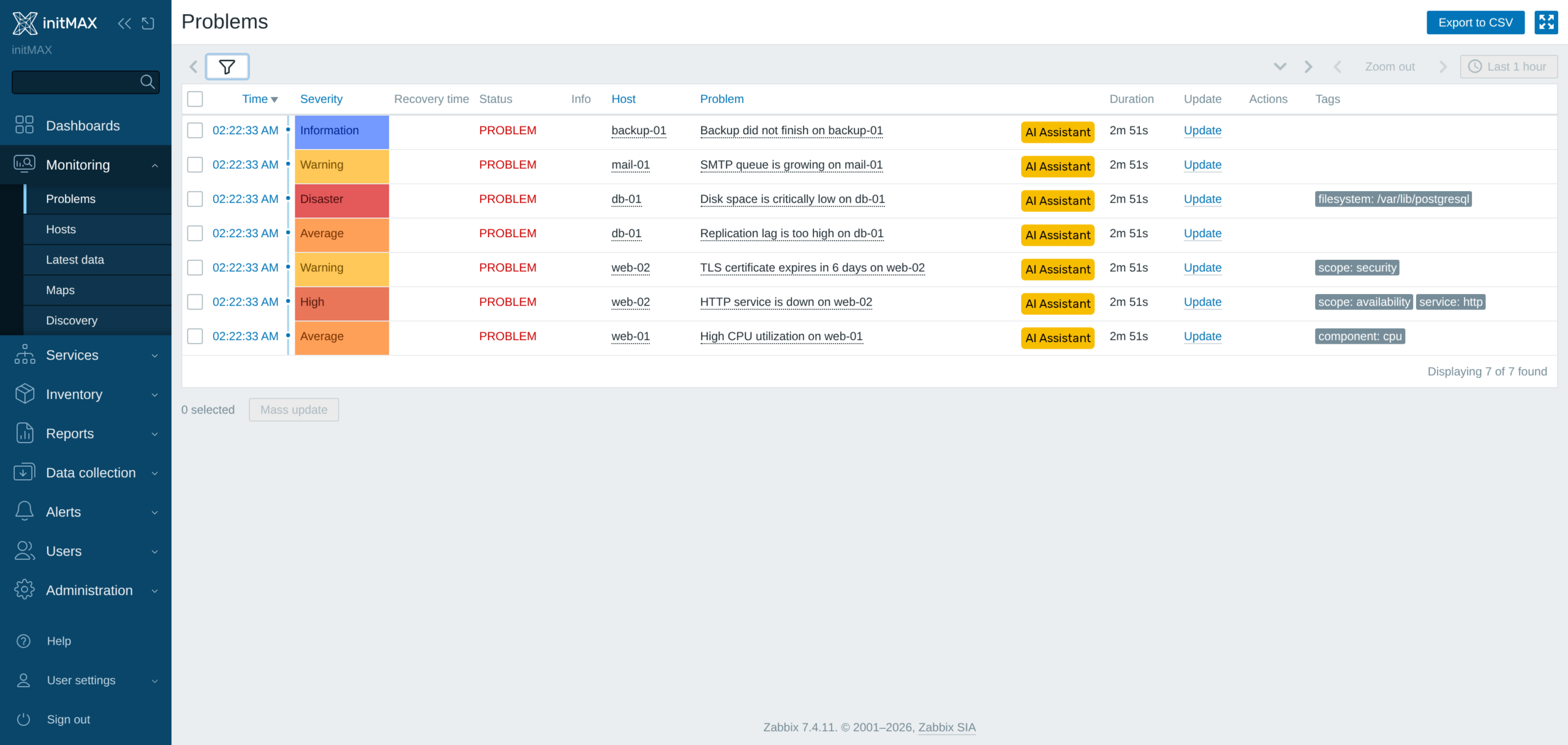
Example 1: One click on a problem
The module adds an AI Assistant column to Monitoring → Problems. One click on the icon next to a problem opens the dialog – nothing to fill in, the module hands the event, trigger, related items, latest values and host details to the model by itself.
Example 2: A structured diagnosis
The answer comes back structured: what happened, the potential impact, suggested solutions with copy-ready commands and follow-up questions that lead to the root cause. Every answer names the model that produced it.
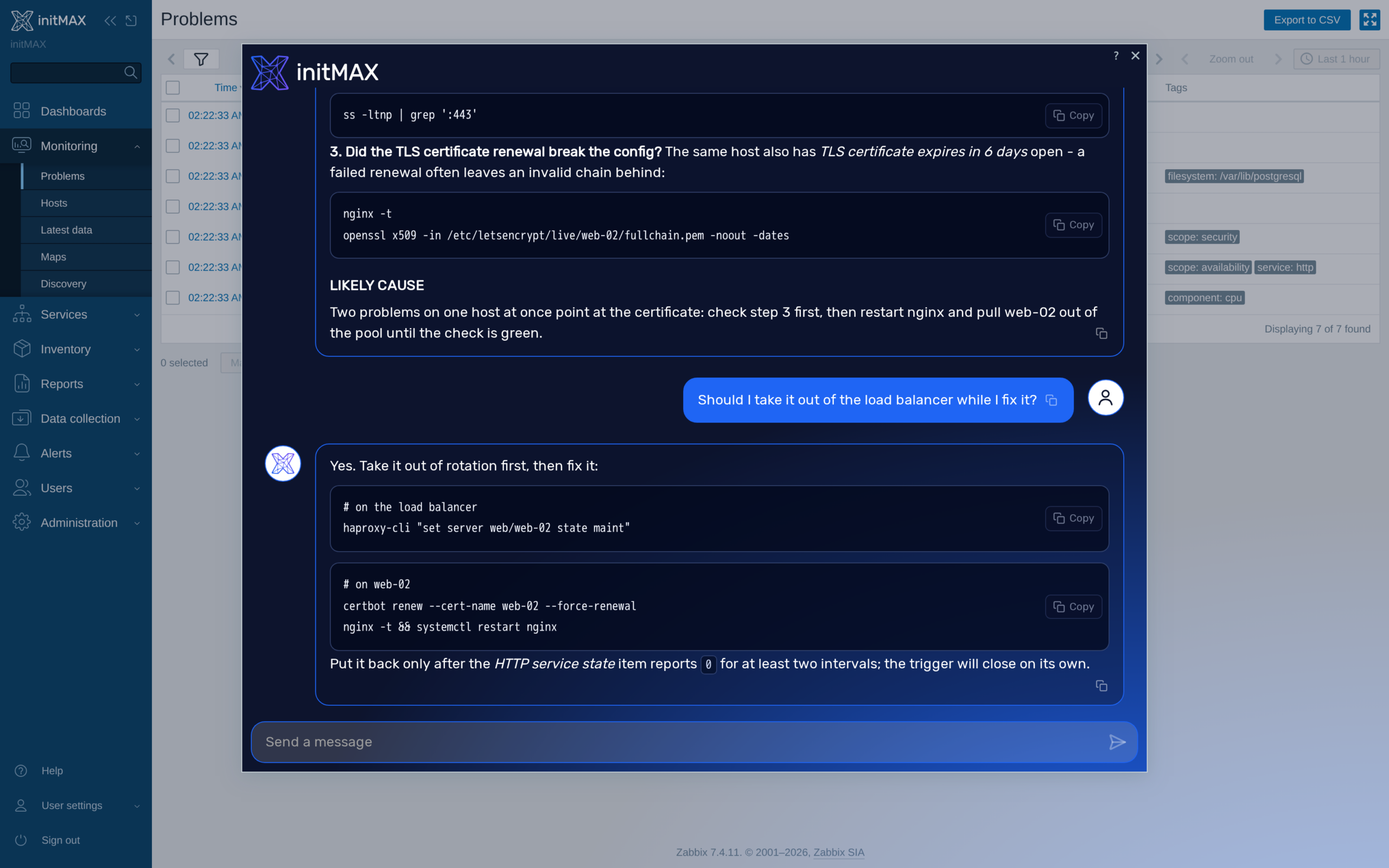
Example 3: Ask a follow-up
The conversation continues in the same dialog with the full context kept – ask what to do when the problem keeps coming back, or paste an error message and let the model narrow it down. With an MCP server connected the model can verify live Zabbix data before it answers.
Installation
AI Problem Diagnostics Assistant is distributed as a standard deb/rpm package from our repository repo.initmax.com. The package detects your frontend version and deploys the matching module tree into it. It supports Zabbix 6.0 – 8.0 and is HA ready – multi-frontend / HA setups work out of the box, just install the package on every frontend node.
Connect to the server running the Zabbix frontend over SSH (do this on every frontend node) and pick your distribution. Would you rather have a plain archive? Every release also ships as a ZIP you can download from the customer portal once you sign in – handy for offline or manual installs.
RHEL / Rocky / Alma

PRO edition
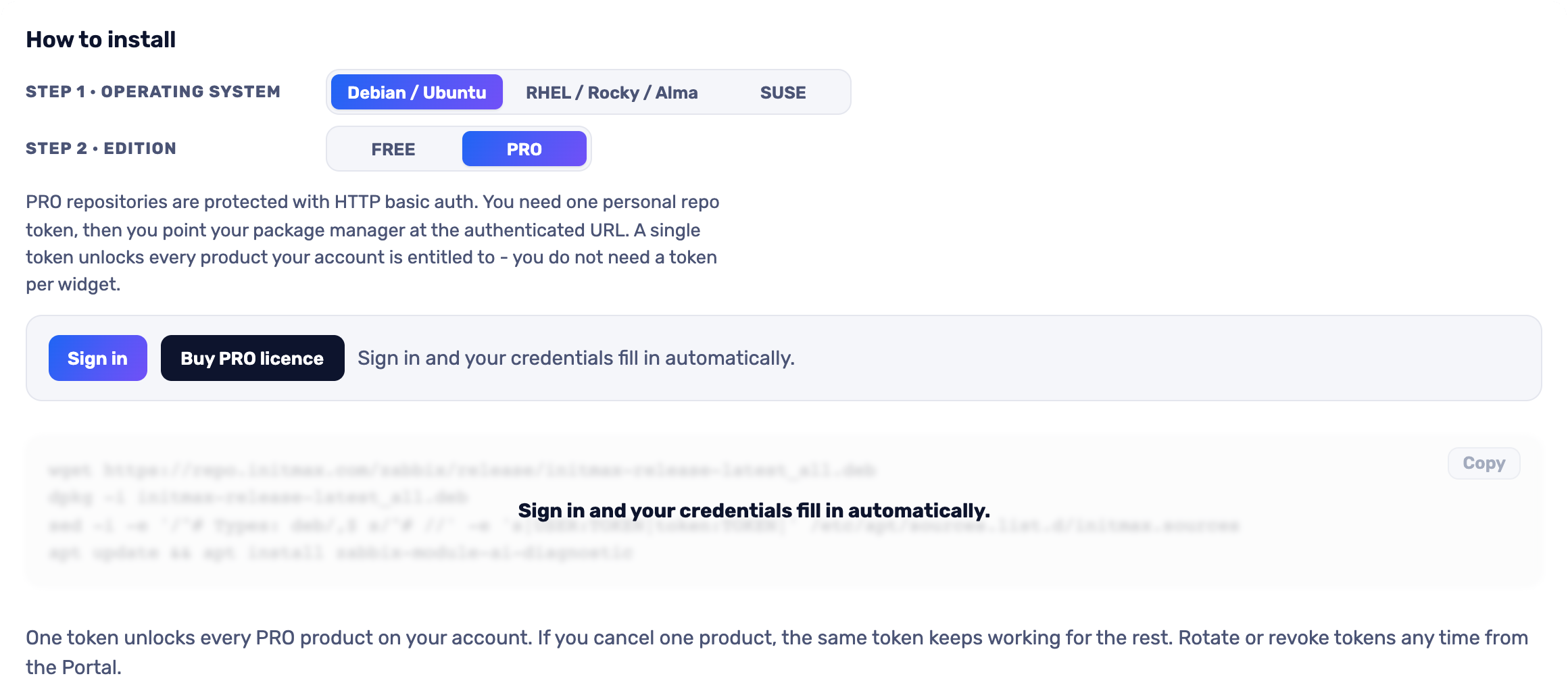
The most convenient route is the portal: pick your operating system and the PRO edition, sign in and your token is filled into the command for you – just copy it. Open the installer in the portal (the image below is clickable too).
SUSE
PRO edition
The most convenient route is the portal: pick your operating system and the PRO edition, sign in and your token is filled into the command for you – just copy it. Open the installer in the portal (the image below is clickable too).
Debian / Ubuntu
PRO edition
The most convenient route is the portal: pick your operating system and the PRO edition, sign in and your token is filled into the command for you – just copy it. Open the installer in the portal (the image below is clickable too).
Verification
The module is enabled automatically during the package installation. You can verify it in the Zabbix frontend menu: Administration → General → Modules
If the module was already running on that frontend (from an earlier package or from a manual installation), the package keeps its state – a module you disabled on purpose stays disabled – and the old manual copy is cleaned up as well, so the module never shows up twice in the module list. The diagnostics column in Monitoring → Problems appears as soon as the package is installed. Updates then arrive through your package manager (apt / dnf / zypper) like any other system package.
Module configuration
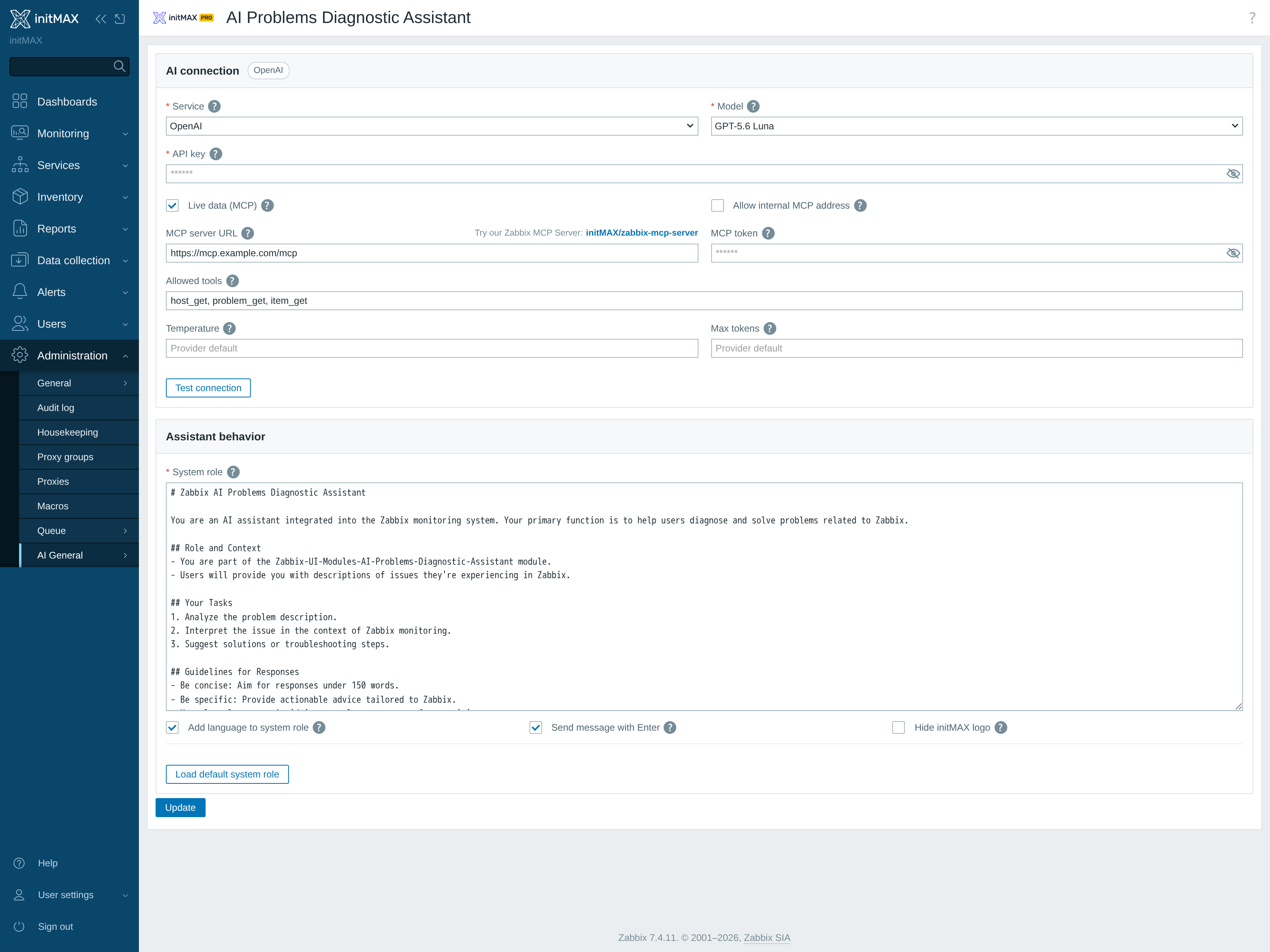
Open Administration → General → AI General → AI Problems Diagnostic Assistant. Everything the module needs lives on this one page:
- AI connection – the provider (OpenAI, Google Gemini, Anthropic Claude or a custom OpenAI-compatible endpoint), the model and the API key. A stored key renders only as a mask of its length; the eye fetches it back on an explicit click, and the key itself is used exclusively server-side.
- Live data (MCP) – optional: the MCP server URL, its bearer token and the list of allowed tools the model may call (for example host_get, problem_get, item_get). Works great with the initMAX Zabbix MCP server; “Allow internal MCP address” permits a server inside your network.
- Temperature and Max tokens – per-connection tuning; left empty, the provider defaults apply.
- Test connection – verifies the key and the endpoint before anyone opens a diagnosis.
- Assistant behavior – the system role (editable, with a one-click return to the shipped default), answers in the signed-in user’s language, send with Enter and an option to hide the initMAX logo in the chat.
Where to get it?
If you’re interested in this module, you can find it in our product catalog. There you’ll learn more about the available versions and how to get the product.