
Zabbix 8.0 LTS is almost here!
The new Zabbix 8.0 LTS release brings a number of exciting new features.
| Contact us for a free consultation | CONTACT US FOR A FREE CONSULTATION AND DEMO |
|
We’ve prepared topic-focused webinars for you |
|
| Training for the latest LTS version (Zabbix 7.0) | MORE INFORMATION ABOUT THE TRAINING |
| You can also explore our DEMO Zabbix. Log in using the “sign in as guest” button. | SIGN IN TO DEMO ZABBIX |
New CEP correlation engine (Complex Event Processing)
One of the major new features in Zabbix 8.0 is the new CEP correlation engine, or Complex Event Processing. It builds on the existing event handling model, but takes it a level further: instead of evaluating individual problems in isolation, it allows Zabbix to evaluate relationships between multiple events, work with time windows, tags, host groups, and follow-up operations.
In practice, this addresses one of the most common monitoring problems. One real incident often generates tens or hundreds of events. A network, database, storage, or central service outage can affect many hosts and applications at once. Without additional logic, the administrator is not dealing with one incident, but with a long list of related problems. CEP helps turn those events into a more understandable picture.
The purpose of CEP is not just to show that a problem occurred. The goal is to apply more advanced logic to the event stream: group related problems, evaluate them within a time window, add tags, change severity, suppress less important events, or distinguish between a cause and its symptoms.
The configuration is available under Data collection > Event processing. The same list also contains the original event correlation rules next to the new CEP rules, and the Type filter separates them. The Info column shows a runtime error of the rule, and the Reset time windows button discards the open time windows after the rule has been changed.
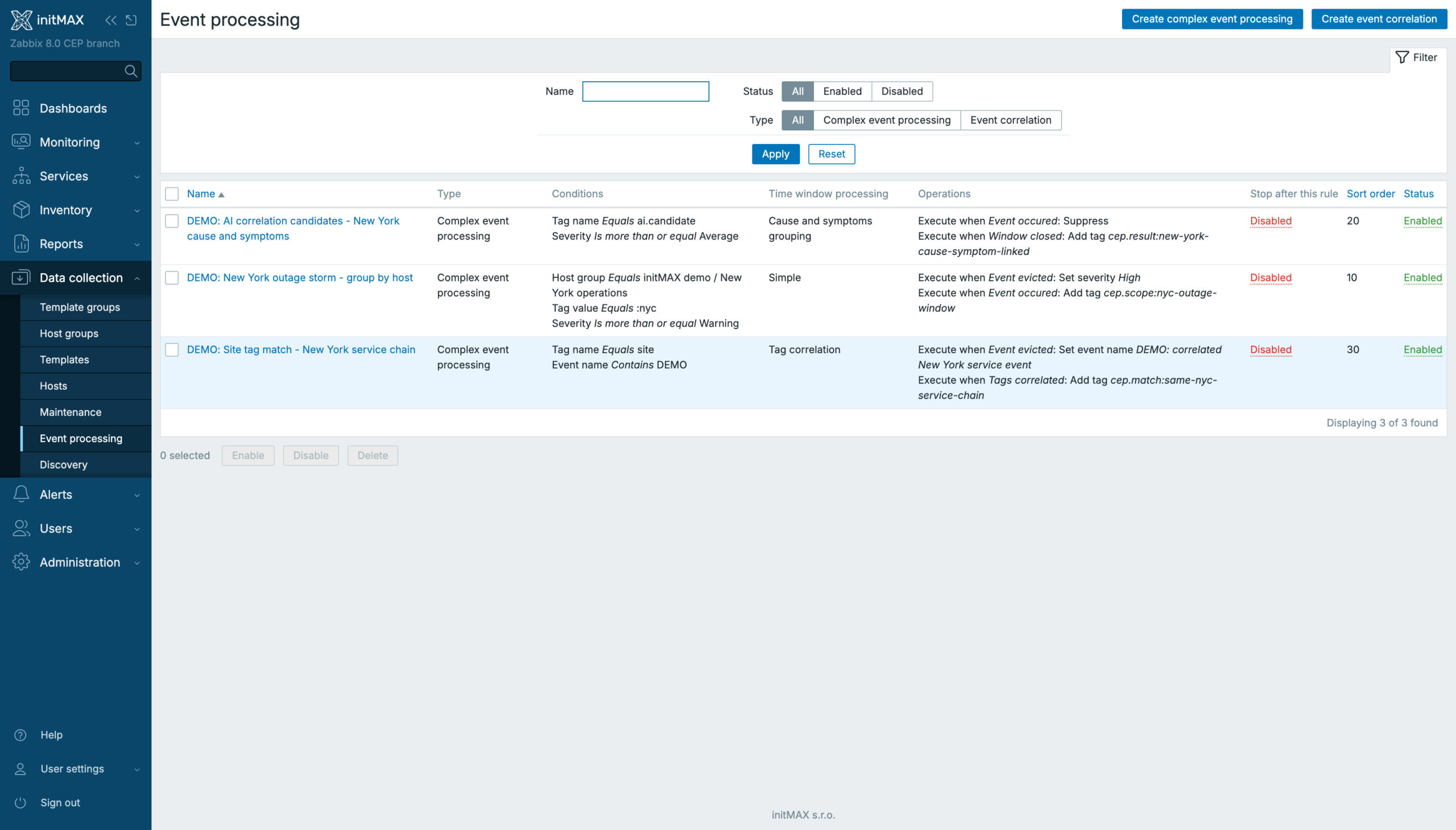
Rule detail
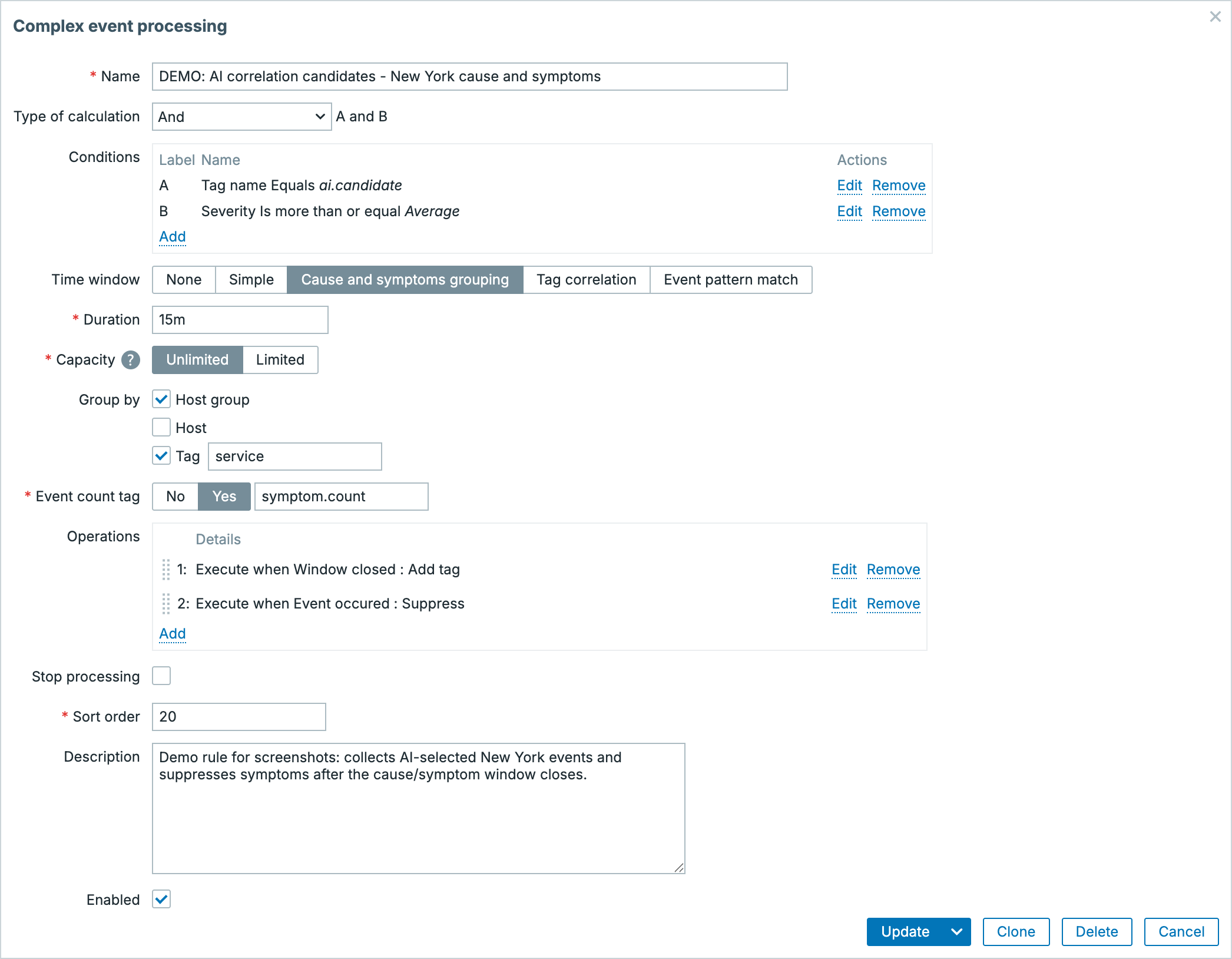
The screenshot shows the detail of a CEP rule. The top part defines which events the rule should catch, the middle part contains the time-window and grouping logic, and the lower part defines the operations Zabbix will perform on matching events.
- Name is the operational identifier of the rule. In larger installations, it makes sense to include the rule purpose in the name, such as location, service, incident type, or expected correlation result.
- Type of calculation and Conditions form the input filter. A rule can select events by Event name, Tag name, Tag value, Severity, Host, Host group, and now also Time period. Tag name and Tag value are separate conditions with the Equals, Does not equal, Contains, and Does not contain operators, and severity supports Is more than or equal. In the example, the rule works with a New York host group, a location tag, and minimum severity. This is where Zabbix decides which events enter the correlation logic at all.
- Time window defines how events are processed over time.
- None means the rule reacts without a time window.
- Simple keeps matching events for the period set in Duration.
- Cause and symptoms grouping is intended for cause-versus-symptom relationships.
- Tag correlation pairs events based on tags.
- Pattern match evaluates an event pattern. The pattern is written in JavaScript in the Script field, which has access to the events in the window.
- Duration defines the length of the window. A value such as
10mmeans related events are watched within a ten-minute interval and can be evaluated as one correlation context. A user macro can be used in the field as well. - Capacity limits the number of events in the window. The Unlimited / Limited switch and a number or macro define how many events the window keeps. After the limit is reached, the oldest event is evicted from the window. Operations executed at Event evicted can then react to that situation, for example by changing severity or adding a tag.
- Group by defines how events inside the window are split into groups. It consists of three independent checkboxes, Host group, Host, and Tag, which can be combined, and multiple tag names can be entered at once, for example location and service. With tags, the exact name including letter case matters. In the Cause and symptoms grouping mode, Group by is not mandatory.
- Event count tag is used in modes where the number of related events matters. The result can be written into a tag, so the scope of the correlation is visible directly on the problem.
- Operations are the rule output. This is where you define what Zabbix should do with the events: add or modify a tag, change severity, suppress a symptom, change the event name, or otherwise affect further processing.
- Stop after this rule stops evaluation of further CEP rules for the same event after the current rule is processed. This is important for rule prioritization and for cases where one rule clearly classifies the incident.
- Sort order defines the evaluation order. Lower values are processed earlier, ties are resolved by rule name, so together with Stop after this rule it can control the priority of the whole correlation logic.
The operation options inside a CEP rule look like this:
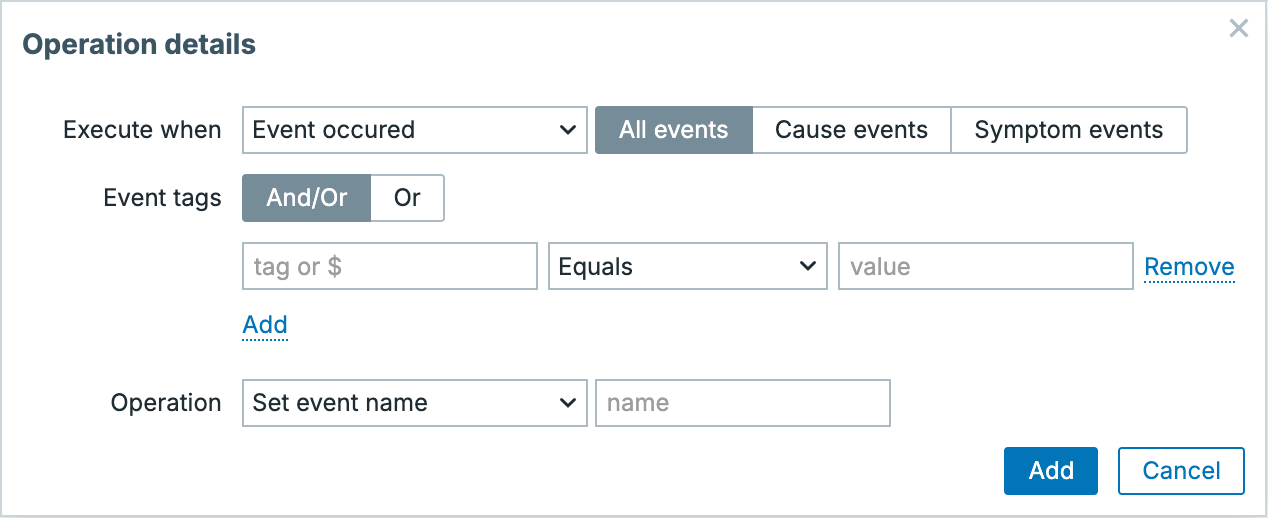
In the Operation details dialog, you first define when the operation should run (Execute when) and which events it should apply to. Event selection is handled by a dedicated Conditions block with the same logic as the rule itself: And/Or or Custom expression and condition types Tag name, Tag value, Problem is opened, Problem is symptom, First event in time window, Last event in time window, Problem is suppressed, and Event is cloned. The same CEP logic can therefore perform a different action on the cause, on the symptoms, or only on the first event in the window.
- Event occurred runs when a new matching event enters the rule. It is useful for immediately adding context, such as a tag or an adjusted event name.
- Event added to window runs only when the event is actually placed into the time window. Unlike Event occurred, the First event in time window and Last event in time window conditions can be used here.
- Event evicted runs when an event leaves the time window, for example because of a capacity limit or because time has moved on. This makes it possible to distinguish events that no longer belong to the current correlation group.
- Window closed is evaluated when the time window closes, after the period set in Duration. This is useful for actions that should happen only after the full group of events has been collected.
- Pattern matched belongs to the Pattern match mode, where an event pattern is evaluated by a script. It is useful when a simple count or shared tag is not enough and the sequence or combination of events matters.
The triggers have a fixed order, Event occurred > Event added to window > Event evicted > Window closed > Pattern matched, and the operations in a rule must be sorted this way. Which triggers are available depends on the window type: None offers only Event occurred, and Pattern matched exists only for Pattern match. The set of operations also changes with the trigger, for example Discard is available only at Event occurred and Pattern matched.
The lower Operation part is the actual action Zabbix performs on the selected events. It is therefore not only a filter that finds events, but also the follow-up processing. Depending on the operation type, additional fields are shown, such as a new event name, target severity, tag name, or tag value.
- Set name changes the event name, and macros work in the value. This is useful when you want to turn several technical messages into a more readable incident name.
- Close and Discard work with the event lifecycle. One option closes the event, while the other can remove it from further processing if it no longer adds value in the given correlation context.
- Set severity, Increase severity, and Decrease severity adjust severity based on what CEP detects. A standalone problem may have lower priority, but in combination with other events it may represent a more serious incident.
- Suppress suppresses a selected event, typically a symptom that should not be shown as prominently as the probable cause. It is set either as Duration or Indefinitely. The opposite operation, Unsuppress, removes the suppression. The suppression is recorded in the event history as a CEP action.
- Add tag, Set tag, and Set tag value add or modify tags. This is useful for filtering, notifications, dashboards, and follow-up automation.
- Increase tag value and Decrease tag value work with the tag value as a counter or numeric context, for example for the number of related events in a correlation group.
- Rename tag and Remove tag help normalize event metadata so Zabbix can continue working with consistent naming.
- Clone first and Clone last create a copy of the first or last event in the window. They are available at Event evicted, Window closed, and Pattern matched, and make sense where you want to produce one summary event from the collected group.
- Close (window) closes the whole time window early. It is useful in Pattern match scenarios where the pattern has been found and there is no reason to wait for Duration to expire.
- In the Cause and symptoms grouping mode, Zabbix itself marks the first event in the window as the cause and the others as symptoms; the event details then show the Set as symptom action with a link to the CEP rule.
Example: incident in the New York location
As a simple example, imagine that several problems appear within a short time in the New York location: on an edge gateway, a database cluster, and an application server. Each problem makes sense on its own, but for the operator it is more important to know that they probably belong to the same incident.
Before correlation
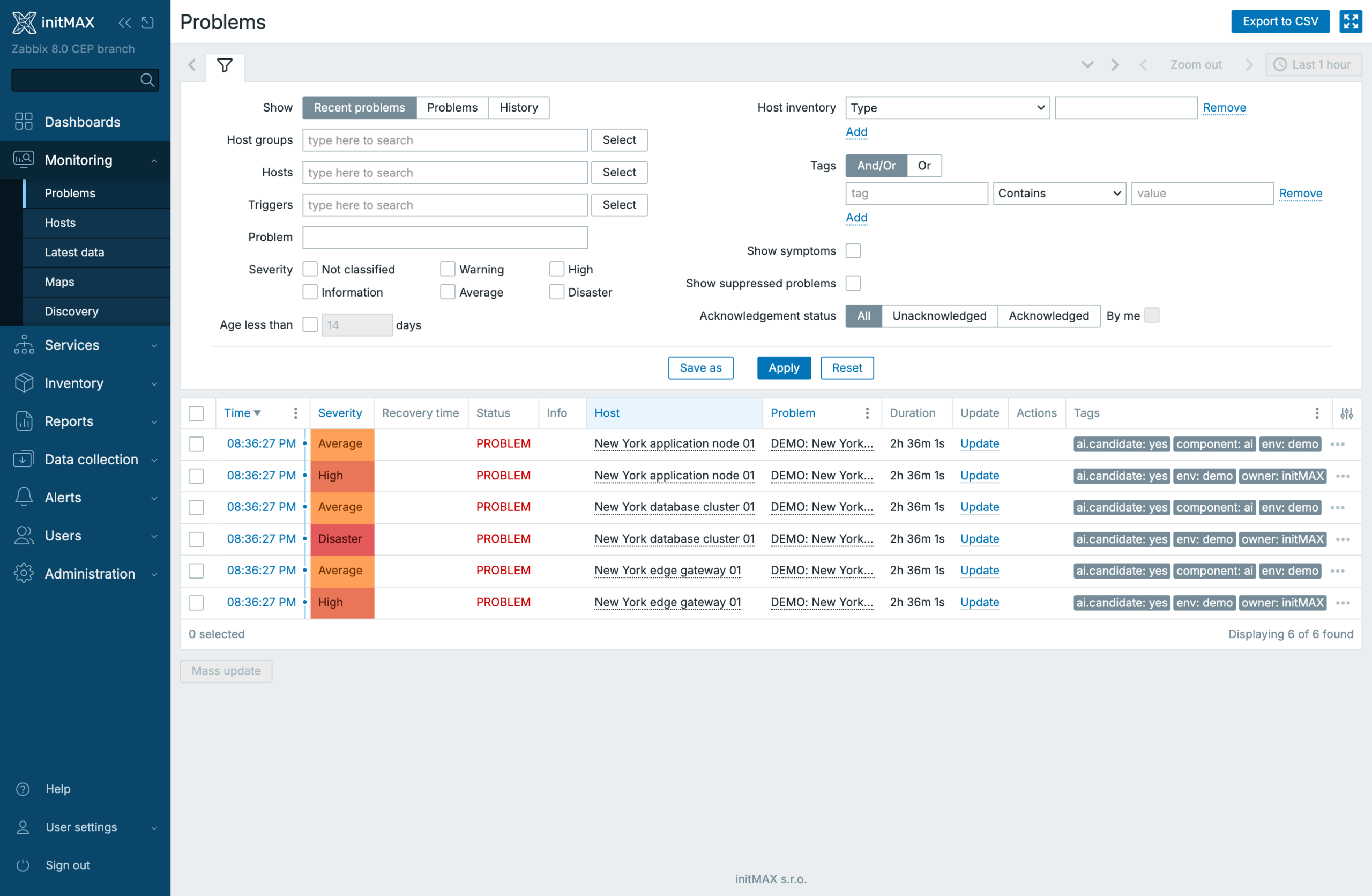
Without correlation, this is a normal list of problems. We can see several events with shared context, such as site=nyc, region=us-east, or similar services, but Zabbix still displays them primarily as separate problems. The operator has to infer the relationship from names, hosts, severity, and tags.
- the problems occurred in the same time period,
- some of them share location tags, such as
site=nycandregion=us-east, - some events can be marked as candidates for further analysis, for example
ai.candidate=yes, - without additional logic, it is not immediately clear what the main cause is and what is only a symptom.
After correlation
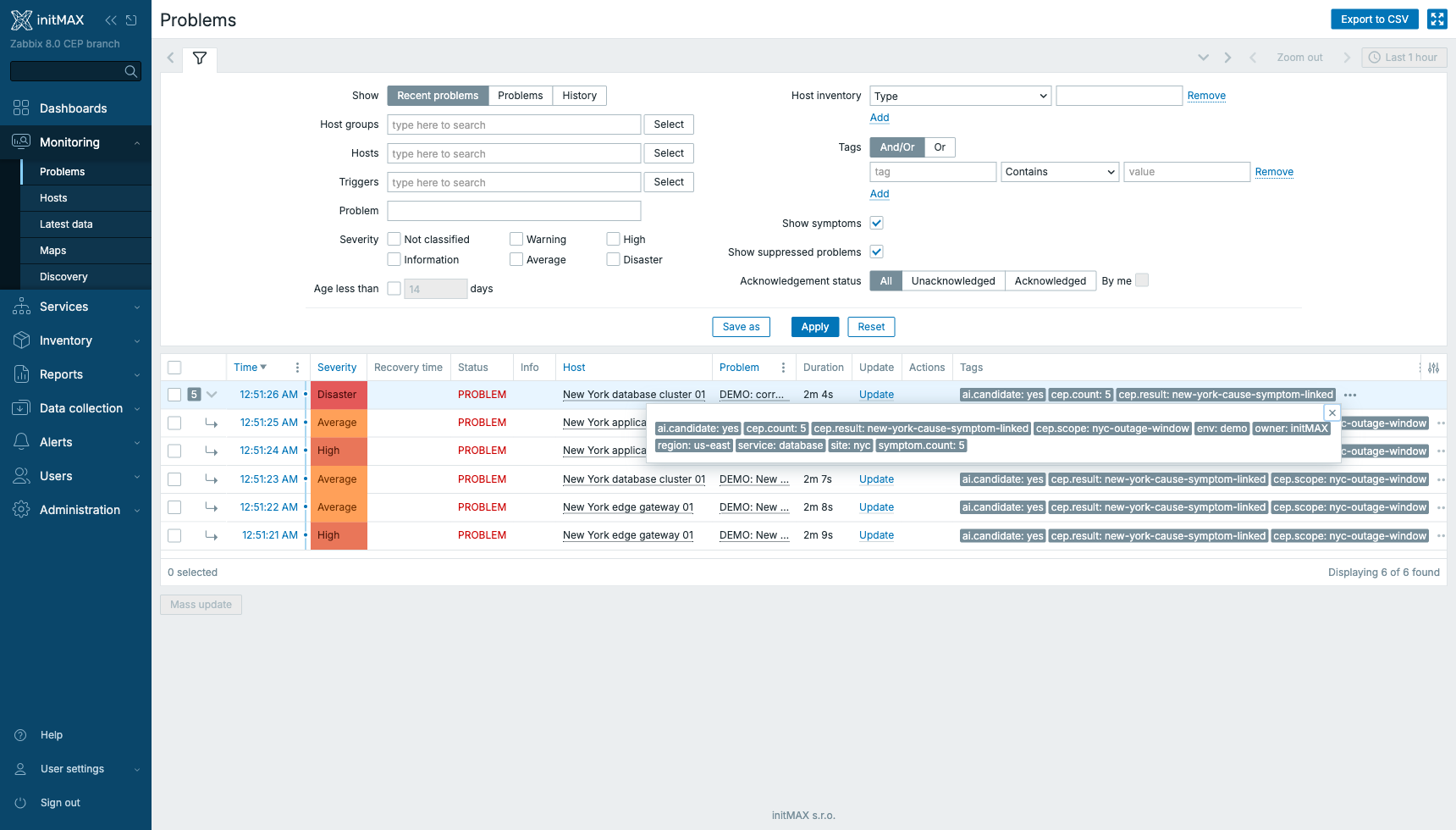
After the CEP rule processes the events, they start behaving as a related group. In the example, the database problem is marked as the probable cause and the other problems are treated as symptoms. The Problems view also shows the number of linked symptoms and the output tag cep.count=5, which adds the correlation scope directly into the event metadata.
- Root cause remains visible as the main problem the operator should focus on first.
- Symptoms do not disappear, but they are linked to the main cause. They provide context without pretending to be separate incidents of the same importance.
- Shared tags, such as
cep.scope=nyc-outage-window, make later filtering, reporting, notifications, and automation easier. - Count tag, for example
cep.count=5, shows the number of related symptoms or the scope of the affected group directly in event data.
The practical effect is that monitoring no longer presents only a longer list of individual problems. Events get context: what probably belongs together, what looks like the cause, which problems are symptoms, and how large the related event group is.
We see CEP as one of the main changes in Zabbix 8.0. It is not a replacement for the existing problem workflow, but a new level of event management: Zabbix can maintain context over events, link them into related groups, and automatically add information that administrators would otherwise have to find manually.
From an operational point of view: time windows are stored in the database and survive a server restart, CEP has its own workers with an internal item for statistics and a section in diaginfo, and the API gained cep_ruleid in the output of event.get and problem.get. Changes made by CEP appear in the event history as a separate action type.
The original global event correlation rules remain in the UI, but they are marked as a legacy/deprecated path next to the new CEP. In practice, this means existing rules do not disappear, but new development is moving toward Event processing and CEP.
Zabbix mobile app and push notifications
Zabbix 8.0 brings an official mobile application and, with it, a new media type called Push. Problem notifications go straight to the phone, without e-mail, an SMS gateway, or a third-party webhook. On the server side this is new infrastructure: management of linked devices, permissions in user roles, and an encrypted channel between the server and the app.
How it works
Zabbix server does not send push messages directly. Between the server and the mobile platform sits the Bridge Adapter, a separate service with a JSON-RPC interface over HTTP(S), which the server contacts when a device is linked (device.init) and for every notification (device.notify). The server passes it the problem.created, problem.updated, and problem.resolved events including severity, priority, title, and message body.
The Bridge Adapter is not part of the Zabbix server installation, and there is no implementation of it in the Zabbix source code; the server only gets its URL. Zabbix presents the mobile app as “integrated with Zabbix Cloud”, so the adapter will most likely be a service operated by Zabbix (similar to proxies in Zabbix Cloud), not a component you deploy yourself. Whether and under what conditions it will be available for on-premise installations has not been published yet.
The notification content is encrypted for the specific device. Each phone gets its own encryption key during linking, the bridge adapter sees only the encrypted payload and never the problem text. The app authenticates to the API with DPoP tokens (proof-of-possession, ES256 signature) with replay protection, so a stolen token cannot be misused without the device key.
Server configuration
The whole feature is disabled by default. It is enabled in zabbix_server.conf:
EnableMobileDevices=1
BridgeAdapterURL=https://bridge-adapter.example.com:10005/rpc
# optional: connect elsewhere than the URL says (e.g. through a tunnel)
BridgeAdapterConnectTo=127.0.0.1:10054
As long as EnableMobileDevices=0, the Devices items do not appear in the frontend at all and the device.* API methods are not available. Without a reachable bridge adapter, linking fails with Cannot initialize mobile device, cannot connect to bridge-adapter.
Linking a device
Users add their phone themselves in User settings > Devices > Add device. The frontend generates a QR code valid for 10 minutes (the countdown runs directly in the dialog), the app scans it, and once linking completes the device appears in the list as Active. No manual typing of server addresses or API tokens.
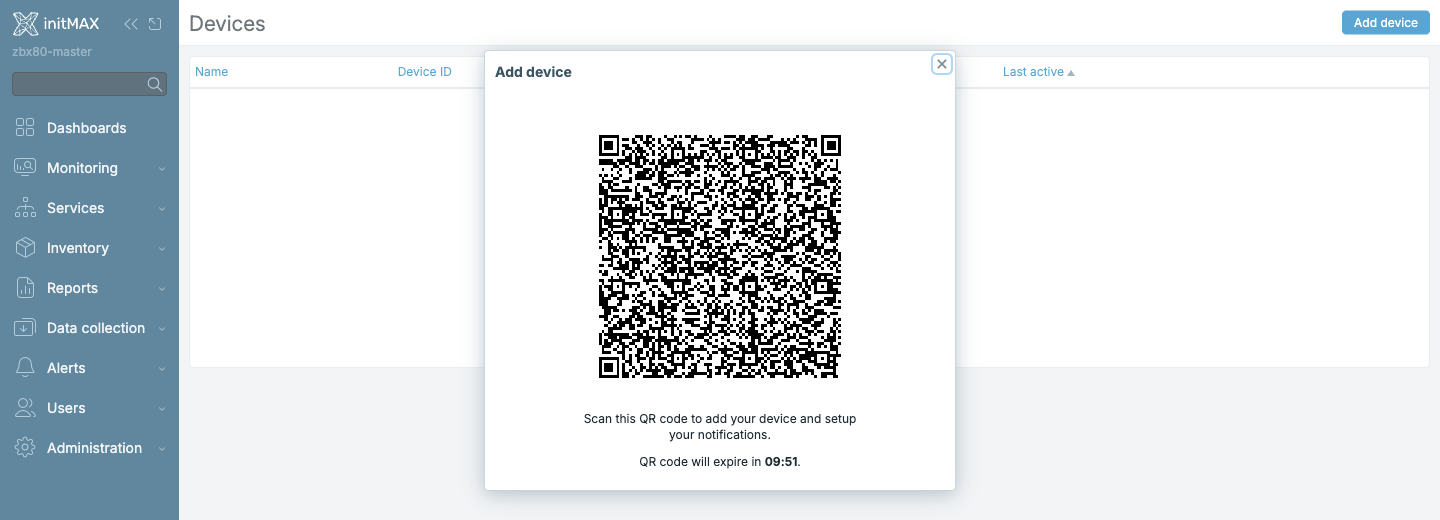
The QR code is a deep link zabbix://v1/link_device and carries everything the app needs for linking: the Zabbix server identifier and name, the device ID, the bridge adapter address, two one-time enrollment tokens (for Zabbix and for the bridge), and the adapter public key. The server identifier is the new Zabbix server ID shown in System information, so the app can tell multiple Zabbix instances apart.
Administrators see all devices in Users > Devices: name, Device ID, user, role, when it was linked, and when it was last active. The states are New (QR generated, not yet scanned), Active, and Orphaned. Devices can be filtered by user, role, or group and removed; an administrator can also generate the QR code on behalf of another user.
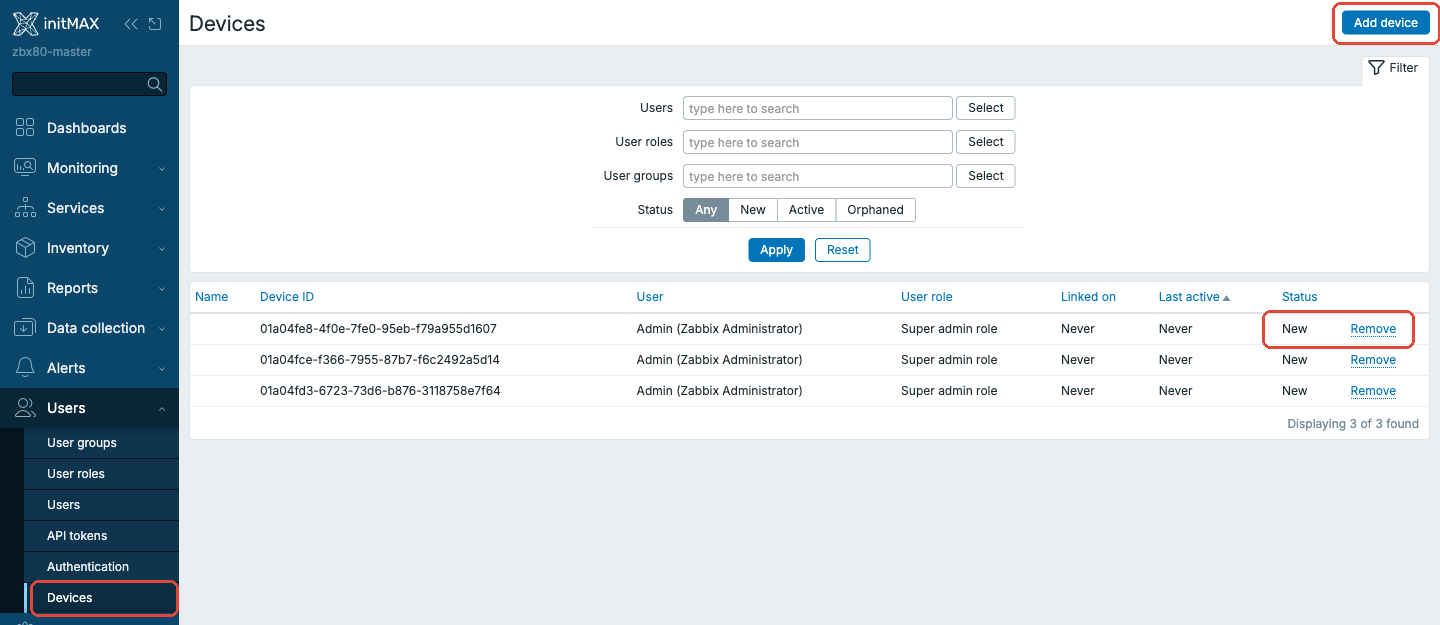 Permissions
User roles gained a separate Devices section: enabling the feature for the role, the Manage own devices and Manage user devices actions, and default access to newly added actions. In addition, there is a new Users > Devices item among the UI elements. You can, for example, allow push notifications for everyone but leave management of other people’s devices to the helpdesk only.
Push media type
The new Push media type sits next to Email, SMS, Script, and Webhook. The form is minimal: name, type, and description, plus a Bridge adapter connection indicator that immediately shows whether the server has the adapter configured. The default message templates for problem, recovery, and update look like {HOST.NAME} - {EVENT.NAME} and [RESOLVED] {HOST.NAME} - {EVENT.NAME}, and macros work as with the other types.
For a user, the media is then configured as usual, except that Send to is not an address but a choice between Active devices (all active devices of the user) and Selected devices. Actions and escalations are configured the same way as for other media types; push is just another escalation step.
What it means in practice
For smaller teams this is the first path to mobile notifications without a paid SMS gateway or an external service. For larger environments, what matters is that linking is self-service, devices are centrally visible and can be removed, and notification content never leaves Zabbix in readable form. The mobile app is a new area for Zabbix, so treat it as a foundation that will keep evolving in 8.0.x.
New look: Dark blue theme, Inter font, and rounded interface
Zabbix 8.0 is the first release in a long time that changes not only the features but also how the interface looks. There are three changes: a new Dark blue color theme, a new font embedded directly in the frontend, and modernized components with rounded corners and better accessibility. None of this changes the page layout; administrators find their way around exactly as in 7.x.
Dark blue theme
Next to the existing Dark theme comes Dark blue: a dark blue background (#001F42), blue accents (#004FA8), and light text, designed not to glare on large screens in a monitoring center while staying more readable than a purely black theme. It also has its own palette for classic graphs, so line colors match the background.
Own font instead of the system one
The frontend now ships its own Inter font (a variable font, italic included) and Noto Sans for Japanese, Korean, Chinese, Georgian, and Hebrew. Zabbix therefore looks the same on Windows, macOS, and Linux and no longer depends on which fonts the browser has available. Along with this, forms where longer texts used to overflow were adjusted (graph widget, preprocessing, setup wizard).
Anyone who prefers the previous look can use the Blue (classic) and Dark (classic) themes with the existing font set. The list of themes is therefore: Blue, Blue (classic), Dark, Dark (classic), High-contrast light, High-contrast dark, and the new Dark blue.
Modernized interface
Input fields, buttons, tables, filters, tabs, and dashboard widgets received uniformly rounded corners and adjusted borders. A small detail at first glance, but overall the interface feels lighter and more consistent. The same screen in 7.4 and 8.0 side by side:
The second part of the modernization is accessibility: a Skip to main content link for keyboard navigation (it appears after pressing Tab), better focus highlighting, and corrected contrasts. Selected text fields also resize automatically to their content (names, expressions, descriptions), so long values no longer have to be scrolled through in a single-line box.
Related details: tooltips and hint boxes can be dragged elsewhere when they cover what you need to see; automatic dashboard slideshows are now off by default and controlled by a URL parameter; and most configuration forms run in modal windows with inline validation, so an error shows up right at the field, not only after saving.
What it means in practice
For users it mainly means the certainty that Zabbix looks the same everywhere and can be operated comfortably from the keyboard. For companies with their own frontend branding (logo and colors via brand.conf.php) nothing changes, the mechanism stays. If you have custom modules or widgets with their own CSS, plan a check on the new themes, especially Dark blue and the classic variants.
APM and OpenTelemetry: traces, metrics, and logs directly in Zabbix
The biggest architectural change in 8.0 fits into one sentence: Zabbix starts accepting OpenTelemetry data. Applications instrumented with an OTel SDK or the OpenTelemetry Collector send traces, metrics, and logs straight to Zabbix proxy, which stores them in ClickHouse, and the frontend can browse them and even derive classic items from them. Zabbix thereby enters the APM (Application Performance Monitoring) space, where until now you had to reach for Jaeger, Tempo, or commercial tools.
It consists of three parts that together form one chain:
- Collection: an OTLP/gRPC collector in Zabbix proxy (port 4317, as with any OTel exporter).
- Browsing: a new top-level menu section APM with the Traces, Metrics, and Logs views over a global APM data source.
- Processing: a new item type, Telemetry query, which turns telemetry data into values for triggers, graphs, and dashboards.
Collection: OpenTelemetry collector in Zabbix proxy
Receiving OTel data is exclusively a proxy job. Zabbix server has no collector and there are no options for it in zabbix_server.conf; even in environments that never needed a proxy before, you will deploy one for APM. The proxy gets a new APM collector process with an OTLP/gRPC interface and writes the received data to ClickHouse, which is also the storage for the new history backend in 8.0. The configuration lives in zabbix_proxy.conf:
StartAPMCollectors=1
APMListenIP=0.0.0.0
APMListenPort=4317
TelemetryProvider=clickhouse;url=http://clickhouse:8123,db=zabbix,username=zabbix,password=zabbix
# TLS for OTLP clients: APMTLSCAFile, APMTLSCertFile, APMTLSKeyFile
The ClickHouse password can be kept in HashiCorp Vault (vault_path=) instead of the file, just like the server database credentials. The proxy is built with gRPC and protobuf support, a new dependency that the packages will bring along.
In the frontend, the proxy form gets a new APM tab with two parts. Input: the Data collection enabled switch and a Max messages per second limit (Unlimited / Custom), so that one chatty application cannot flood the storage. Process: an Add resource attributes table, i.e. attributes the proxy adds to all received data (for example environment or location) without configuring them in every application. If the collector is not enabled in the proxy configuration file, the frontend says so right in the form.
Browsing: Traces, Metrics, and Logs
The main menu gains a new APM section right below Monitoring, with three views. Traces filters by Trace ID, Span ID, service and operation name, scope, duration (min/max), status (Ok / Error / Unset), and arbitrary attributes with And/Or logic, and lists spans with start time, attributes, and duration. The screenshots below show the span list of a test e-shop and the same view narrowed down to slow payment gateway calls. Logs searches the record body, severity (Trace to Fatal), and attributes, and links a log to its trace via Trace ID / Span ID. Metrics filters metrics by name, type, service, and scope. All three views use the same time selector as the rest of Zabbix.
The views read from a global APM data source configured in Administration > Data source > APM: database type (ClickHouse), URL, authentication (username and password, or none), database name, and for HTTPS the certificate and hostname verification. It is the same ClickHouse the proxy writes to, just from the frontend’s point of view; the data sits in the standard tables of the OpenTelemetry ClickHouse exporter (otel_traces), so other tools can read it as well.
Processing: the Telemetry query item type
The new Telemetry query item type connects the OTel world with classic Zabbix. Instead of a key you compose a query: category (Traces, Metrics, Logs), for metrics the point type (Sum, Gauge, Histogram, Exponential histogram), the columns to read, aggregated columns with a function and alias, and conditions on attributes with And/Or logic or a custom expression. Three time parameters define how the query is evaluated: Granularity (size of the aggregation bucket), Time shift (shifting the window back), and Lookback limit (how far back to look for missing data).
The result is an ordinary item value, so triggers, graphs, dashboards, and escalations all work on top of it. A typical example: the 95th percentile of the checkout service response time over the last 5 minutes as a numeric item with a trigger at 800 ms. Zabbix server (or proxy) needs its own TelemetryProvider in the configuration for this, and these queries have a separate timeout, timeout_telemetry_query.
Demo: from traces to a trigger
We tried the whole chain on a test installation: traces of a fictional e-shop (services frontend, checkout, payment, inventory) flow into ClickHouse in the OpenTelemetry ClickHouse exporter format, and Zabbix server computes Telemetry query items on top of them. The item for the 95th percentile of the checkout service latency looks like this: category Traces, aggregated columns percentile(Duration, 95), avg(Duration), and count, condition ServiceName equals checkout, granularity 1 minute, update interval 30 s.
The server translates the query into ClickHouse SQL and returns one value per bucket as JSON, for example {"columns":{"p95":217264910,"avg":186257520,"cnt":29}} (Duration is in nanoseconds). The rest is classic Zabbix: the JSONPath preprocessing step $.columns.p95 and a Custom multiplier of 1.0E-6 turn the value into milliseconds, and the item gets the unit ms. The same way we created items for average latency, requests per minute, the payment gateway p95, and the number of HTTP 5xx errors on /api/checkout (a condition on SpanAttributes with the key http.route).
Triggers work on top of these items like on anything else: last(/Zabbix server/apm.checkout.latency.p95)>800 watches latency, last(/Zabbix server/apm.checkout.errors)>=3 the number of errors per minute. When the payment gateway error rate went up in the test traffic, the trigger fired and Problems shows the problem with the service: checkout tags, from which you can jump straight into the filter of the Traces view.
What it means in practice
For teams that already instrument their applications with OpenTelemetry, 8.0 means infrastructure monitoring and APM in one tool, with the same users, permissions, and notifications. Keep in mind that it brings a new mandatory building block, ClickHouse, and with it disk and operational demands. A sensible start is one proxy with the collector for one environment and a few Telemetry query items on key services; the Traces and Logs views then serve to find the root cause when a trigger fires.
Security and control: Vault AppRole, feature flags, API disabled by default
Zabbix 8.0 brings several changes that are invisible on a dashboard but matter to anyone running Zabbix for multiple teams or customers: safer defaults (API disabled in roles, no legacy protocols on the trapper), better handling of secrets (HashiCorp Vault AppRole), and tools to trim an installation down to what the operator really wants to allow (feature flags, regular expressions for agent keys, restricting users to specific proxies).
HashiCorp Vault: AppRole instead of a token
Logging in to HashiCorp Vault used to require a static token in both the server and the frontend configuration. 8.0 adds AppRole: the server gets VaultAppRoleID and VaultAppSecretID, the frontend $DB['VAULT_APP_ROLE_ID'] and $DB['VAULT_APP_SECRET_ID'], and it requests the token itself. For the security team this is the standard way to issue Zabbix an identity with a limited policy and rotate the secret ID, instead of a long-lived token in a file.
### zabbix_server.conf
Vault=HashiCorp
VaultURL=https://vault.example.com:8200
VaultDBPath=secret/zabbix/db
VaultAppRoleID=8a1c2f7e-0b3d-4c5e-9f10-1a2b3c4d5e6f
VaultAppSecretID=...
The frontend setup wizard has a new Vault authentication type: Token / AppRole switch in the Configure DB connection step. The same option applies to the ClickHouse password of the APM data source (vault_path= in TelemetryProvider).
API disabled by default
New user roles have Access to API disabled, for all role types including Super admin. Whoever needs the API (integrations, scripts, our Zabbix MCP server) has to enable it in the role, ideally restricting it with an allow list of methods right away. Existing roles stay as they are during the upgrade; the change applies to roles created in 8.0. It is the end of the era when every account with a password automatically had full programmatic access as well.
Feature flags: what must not exist in the installation at all
zabbix.conf.php gains a $ZBX_FEATURE_FLAGS array that switches off whole frontend features at the system level, regardless of user permissions:
$ZBX_FEATURE_FLAGS['modules_config_enabled'] = false;   // no third-party modules and widgets
$ZBX_FEATURE_FLAGS['http_auth_enabled'] = false;        // no HTTP authentication
$ZBX_FEATURE_FLAGS['media_type_denylist'] = ['script', 'webhook'];  // no editing of selected media types
$ZBX_FEATURE_FLAGS['banners_enabled'] = false;          // no informational banners
With modules disabled, the Administration > General > Modules item disappears and nobody, not even a Super admin, can turn it back on through the UI. The intended use is obvious: managed and regulated environments where the operator, not each administrator separately, decides the scope of the installation.
Trapper without legacy protocols and regular expressions for agent keys
The server and proxy trapper no longer accepts the older, non-JSON variants of the protocol from the days before Zabbix 4.x. Anyone with a forgotten very old agent or a custom script sending data in the original text format has to convert it to the JSON protocol before the upgrade; everything newer is unaffected.
The agent configuration (agent 2 as well) gains AllowKeyRegexp and DenyKeyRegexp. Until now keys could only be allowed with wildcards; now a rule can be written as a PCRE2 expression that must match the whole key. All AllowKey, DenyKey, AllowKeyRegexp, and DenyKeyRegexp rules are merged into one list in the order they appear in the file, and the first match decides:
AllowKeyRegexp=^vfs\.fs\.(size|inode)\[/(var|opt)(/[^,]*)?,.*\]$
DenyKey=system.run[*]
Restricting users to specific proxies
For service providers serving multiple customers on one Zabbix, there is a Proxy access list in the user group: a list of proxies and proxy groups (allow or deny) that the group’s users may assign hosts to and see in discovery. Newly created groups default to allow-list mode, so without an explicit permission a user cannot reach someone else’s proxy; hosts monitored by an inaccessible proxy show up as Inaccessible proxy.
Server identity
Every server now has a Zabbix server ID (UUID) shown in System information together with an Export button that exports the system overview including HA nodes. The ID is used by the mobile app to tell instances apart and is handy wherever information from multiple Zabbix instances is collected, for example in support or in an inventory.
What it means in practice
Before the upgrade, review the roles and integrations that use the API and prepare method allow lists. Consider moving the Vault token to AppRole, convert complex AllowKey masks on agents to regular expressions, and in multi-team environments set feature flags and proxy access lists before users start settling into the installation.
Maintenance and suppression: ad-hoc maintenance from a problem, suppression recorded in the event
Maintenance in Zabbix used to mean planning: create a maintenance for a host group in advance, set the window and hope nobody forgets. Zabbix 8.0 adds a second path, ad-hoc maintenance started directly from a problem in a few clicks, extends maintenance targets with triggers and event names, and above all records suppression by maintenance in the event history, so the question “why did I not get a notification” finally has an answer in the UI.
Ad-hoc maintenance straight from Problems
The problem context menu has a new Maintenance section with four options: Suppress host, Suppress trigger, Suppress by event name and Suppress by tags. Each opens the maintenance form already prefilled from the selected problem: name Ad-hoc: event name, start now, end after the default period, and the host, trigger, event name or tags of the problem as the target. Check and save.
The same Suppress trigger link is available in the Update problem dialog, and when updating several problems at once it becomes Suppress triggers with the matching trigger count. The window length comes from the new Default maintenance period field in the user profile (1 hour by default), so an operator who typically resolves incidents within 30 minutes sets 30m and the ad-hoc maintenance never forgets to end on their behalf. The options are shown only to users whose role allows creating maintenance and who have edit rights to the host or trigger in question.
Maintenance on a trigger and on an event name
Besides groups and hosts, the maintenance form gets a new Triggers target and a new Event name condition (Contains / Does not contain). Tag operators gain Does not equal and Does not contain. You can suppress a single trigger on a host waiting for a disk replacement and leave the rest of the monitoring running, or suppress every problem with “certificate expires” in its name across hosts until the certificates are renewed. In the API this maps to the triggerids and event_names parameters of maintenance.create / maintenance.update and selectTriggers, selectEventNames in maintenance.get:
{
  "jsonrpc": "2.0",
  "method": "maintenance.create",
  "params": {
    "name": "Ad-hoc: certificate renewal",
    "active_since": 1788080400,
    "active_till": 1788084000,
    "groupids": ["2"],
    "event_names": [{"operator": 2, "value": "certificate expires"}],
    "timeperiods": [{"timeperiod_type": 0, "period": 3600}]
  },
  "id": 1
}
Suppression by maintenance is visible in the event history
Until now maintenance silently hid a problem and once it ended there was no trace of why a particular event did not trigger an action. In 8.0 the server records every suppression and unsuppression by maintenance as an entry in the event history, together with the maintenance that caused it and the time the suppression was valid until. In Event details it appears in the Actions section as a crossed-out eye icon with the hint Suppressed till … / Maintenance: …, and once the maintenance ends an Unsuppressed by maintenance entry is added. The same information is in the API: event.get with selectAcknowledges returns entries with action 512 (suppressed) or 1024 (unsuppressed), maintenanceid and suppress_until. The change also includes more precise handling of overlapping maintenance periods and of edits to a running maintenance.
Proxy group condition in discovery and autoregistration
Network discovery and autoregistration actions get a new Proxy group condition type (equals / does not equal). Anyone running proxy groups per site or per customer can now write an action like “put hosts registered through the DC Prague group into the Prague host group and link template X” without listing individual proxies, and nothing needs to change when a proxy is added to the group. The Proxy condition in autoregistration was also fixed to behave the same way as in discovery.
What it means in practice
Give users a sensible Default maintenance period and teach operators to use Suppress trigger instead of disabling triggers that then never get re-enabled. When auditing incidents, get used to opening Event details: the suppression-by-maintenance record is the new source of truth for why an alert was not sent. And in environments with proxy groups, rewrite discovery and autoregistration actions from a list of proxies to a Proxy group condition.
Widget Scatter Plot
Simply put: you take two metrics (X and Y axis) and Zabbix will plot points for each host/time interval. At a glance, you can see correlations (or the lack of them), clusters of problematic machines, and anomalies that could easily be missed in a classic time-series chart.
Benefits
- Metric relationships: e.g., “when CPU increases, does RAM also increase?”
- Outliers: quickly detect servers that stand out.
- Visual triage: instantly see where to focus first.
How it works
- Datasets: multiple sets; each has an X-Axis item and a Y-Axis item.
- Host filtering: Host patterns / Host groups / Host tags.
- Aggregation: Aggregation interval (e.g., 1m) + function (e.g., avg) → one point per window.
- Appearance: choose marker and size; tooltips with values; time shift for period comparison.
Thresholds
Combined conditions for X and Y change the point’s color, e.g., X ≥ 5 AND Y ≥ 36. Multiple rules = multiple colors → anomalies become instantly visible (see image).
Example Scenarios
- CPU load vs. Memory usage
X axis: average CPU load
Y axis: percentage of RAM used
→ Quickly shows whether hosts with high CPU also have high RAM usage. Great first diagnostic for “CPU bound” vs. “RAM bound.” - Disk usage vs. I/O latency
X axis: disk utilization (%)
Y axis: latency (ms)
→ Identifies servers with overloaded storage. The combination of high utilization + high latency is a red flag for I/O. - Network traffic vs. Error rate
X axis: outgoing/incoming traffic (bps)
Y axis: error rate (dropped packets, errors)
→ Finds machines with low traffic but many errors – typically bad links, duplex, MTU, or driver issues. - Response time vs. Availability (services/apps)
X axis: average response time (ms)
Y axis: availability (%)
→ Differentiates “slow but stable” vs. “fast but unreliable” services. A strategic view for prioritizing team effort.
ClickHouse backend and significant improvements for Elastic
A major new feature is support for ClickHouse as an optional storage backend for historical data. The main motivation is clearly its close connection to the new support for JSON data types-with this volume and structure of data, an analytical backend like ClickHouse makes perfect sense.
The concept and configuration are very similar to what many of you already know from the optional Elastic integration. Zabbix can store historical data in an alternative backend without changing the core architecture. ClickHouse can store all history data types except BIN, which covers the vast majority of both common and advanced use cases.
A big advantage is that you can combine Elastic and (now) ClickHouse and split data types based on what makes the most sense-while keeping PostgreSQL as the primary backend for most standard history.
A typical scenario could be, for example:
- LOG / TEXT / CHAR → Elastic (search, full-text, log analytics, and text-based observability queries)
- Numeric data (float/uint) → PostgreSQL (a stable, proven time-series backend for classic metrics and trends; simplicity, compatibility, and battle-tested operation)
- JSON → ClickHouse (high analytical performance for semi-structured data, aggregations, filtering, and wide queries over JSON structures)
And of course, you can adjust the strategy based on your priorities-e.g., if you want to push as much as possible to an analytical backend, or if you prefer the simplest architecture and use ClickHouse only where it brings the biggest impact (typically JSON).
Frontend configuration (Zabbix UI / frontend)
Frontend configuration is defined in /etc/zabbix/web/zabbix.conf.php using the $HISTORY_PROVIDERS array. Each backend (ClickHouse, Elastic) is listed as a separate item in this array-therefore the individual blocks are separated by commas (standard PHP syntax). In practice, you can set ClickHouse as the primary provider for selected value types and add another provider (e.g., Elastic) right below it for str.
Server configuration (Zabbix server)
The second part of the configuration is in /etc/zabbix/zabbix_server.conf, where individual providers are defined on separate lines using the repeated HistoryProvider directive. Unlike the frontend, this is not a “list of items” but a configuration in the form provider;options, where the options themselves (url=..., db=..., username=...) are comma-separated.
Using these backends is also very easy to verify directly in the Zabbix server log-right at startup, Zabbix prints the list of active history providers (including the detected version and assigned value_types), so you immediately know where each type of historical data is being stored.
In the frontend, the data looks exactly the same-there is no UI-level difference whether historical data is stored in PostgreSQL, ClickHouse, or Elastic. Zabbix transparently displays the latest values, history, and graphs regardless of the backend used; the only exception is BIN values, which remain stored in the server’s primary database (PostgreSQL/MySQL).
Elasticsearch
The Elastic backend has also undergone significant internal changes-the biggest difference is in the way it communicates. It now relies more on connection reuse and other optimizations in the network layer and request handling. As a result, this backend is noticeably faster from Zabbix’s perspective, especially in environments with a high query rate and a large volume of stored data.
Multi-host connection string for PostgreSQL backend
For us, this is one of the best practical improvements to the PostgreSQL backend so far. The ability to specify multiple host:port entries in DBHost (comma-separated) and let Zabbix automatically find the first available read-write node at startup significantly simplifies deployment and operations-especially in HA environments. In practice, this often means fewer dependencies on an external load balancer and a cleaner, more self-contained configuration directly within Zabbix.
New option to store data in JSON format
We’ve finally got it: in Zabbix’s (almost) native JSON world, there is now an option to store such data directly in the database – in JSON format. The feature is available on both the proxy and the server side. Conceptually, it’s similar to the Binary storage type we already know (used, for example, for storing screenshots). Partitioning support for the new table is included as well, and the change is also reflected in the Elastic implementation.
One more important advantage: unlike Binary storage, this type can be used not only for master items, but also for dependent items.
We see the primary use case in scenarios with a large number of master items. The maximum size of stored data per single write is 128 MiB.
Just like with the Binary type (available since Zabbix 7.0), it is not possible to create triggers for this data type – and that’s not the purpose of storing data this way. The reason is that such triggers could put an extreme load on the server’s value cache. So this is primarily a practical capacity/performance limitation (to ensure the data fits into the memory used by the value cache), rather than something that would be impossible to implement technically.
Dashboard export and import
Dashboard export and import are finally available. You could achieve something similar via the API before, but you had to map individual entities precisely by their IDs – otherwise the import would fail.
Now the UI provides two buttons: one for Export (in the familiar Zabbix export format) and one for Import.
You’ll find the Import button in the top-right corner of the dashboards overview, right next to Create dashboard.
The import process itself is straightforward: you can create entirely new dashboards, and if they already exist, you can update the existing ones. The import also supports pages, if you use them within your dashboards.
During import, individual objects are not matched by ID, but by name. In our example, the host was renamed from “Zabbix server” to “Zabbix server RENAMED”, and the system was then unable to find it. The fix is straightforward: you can adjust the mapping directly in the UI during import, or by editing the exported file.
Before the actual import, you’ll also see a summary of what will be added, removed, and updated – including the specific changes.
GeoMap Clustering
In the GeoMap widget, you can now configure different host clustering behavior for your maps. You can choose between Auto (the previous/default behavior) and a new Zoom level option. With Zoom level, clustering changes at a defined zoom threshold – for example, if the threshold is set to 8, only a few host markers split into individual elements when you zoom in; if you lower it to 5, many more markers remain clustered, so the map stays grouped and cleaner until you zoom further in.
Example video of GeoMap clustering
Visual Inherited Tag Indicator
Zabbix now makes inherited tags a first-class part of the UI, so you can immediately tell whether a tag comes from a template/parent object or if it was created directly on the current level. This is especially handy in large environments where many objects share the same names and you rely on tags for routing, filtering, and consistent classification across hosts, templates, items, and triggers.
In the list views, inherited tags are marked with a small page/document icon on the left side of the tag pill, and when you hover over it you’ll see a tooltip like “Inherited tag” (as highlighted in the screenshot). Tags without this icon are not inherited – they were added directly at that level. In the example below, most tags are inherited, while initMAX is a non-inherited tag created locally, making the difference instantly visible.
Add custom tags to triggers created from trigger prototypes
This feature allows you to assign custom tags to triggers that are created from trigger prototypes.
It is especially useful for controlling notifications (send / do not send alerts based on tags) and for labeling triggers by specific services, teams, or use cases, enabling more precise alert routing, filtering, and service-level correlation.
Customizable table views on selected pages
This feature lets you customize list tables on supported pages via the column settings in the top-right corner. You can show or hide entire columns and resize their widths; renaming is currently available only for duplicated tag columns (as shown in the screenshot).
Where it’s available:
- Monitoring → Hosts
- Monitoring → Latest data
- Monitoring → Problems
- Data collection → Hosts
- Data collection → Templates
All changes are stored in your user profile, so the layout is personal and not shared with other users. We also plan to update our User Filter Manager (https://www.initmax.com/product/user-filter-manager/) to support this functionality as well.
In the second screenshot, you can see an example of a duplicated “Tags” column, where we can apply filtering and also rename that duplicated tag column. This is a really cool feature and makes it much easier to keep tag-heavy views clean and focused.
Here’s a short video showing how you can resize columns and hide them in the Triggers view.
Storing SAML certificates directly in the database
You can now configure Zabbix to store SAML certificates directly in the database. Simply set the following option in the frontend configuration file (typically /etc/zabbix/web/zabbix.conf.php):
$SSO['CERT_STORAGE'] = 'database';This eliminates the need to upload certificates directly to the server’s file system. This solution brings several benefits, especially:
- Easy configuration directly via the web interface.
- Unified certificate management in High Availability (HA) deployments.
- Simplified administration of the entire SAML configuration.
Overview of minor improvements
Audit log export to CSV
The audit log is getting CSV export. It is a smaller change, but a very useful one in practice. In larger installations, audit records are often handed over outside Zabbix, archived, compared, or used during change reviews. Direct export reduces the need for manual copying or additional scripts.
Safer default settings for trapper items
Zabbix adds a default value for Allowed hosts in trapper items and introduces the global macro {$TRAPPER.ALLOWED_HOSTS}. This helps especially with templates, imports, and bulk management, where it is better to have a unified and easily adjustable default mode instead of manually filling the same setting in many places.
New agent keys net.if.get and vfs.dev.get
The agent gets two new discovery keys: net.if.get returns network interfaces and vfs.dev.get block devices (Linux and AIX) as a single JSON with all attributes, with no need to assemble them from several items. The Linux and AIX by Zabbix agent templates already use them, and they are handy for custom LLD rules too.
DNS via c-ares with caching and failover
Server, proxy and agent can resolve DNS through the c-ares library with caching and failover between resolvers (a build option, also available for the Windows agent). An outage or slowdown of one DNS server no longer stalls polling of hosts configured by name.
SNMPv3 engine ID caching
SNMPv3 caches the engine ID of a device after the first discovery and no longer needs the initial exchange before every request. On large SNMP networks that means noticeably fewer packets and faster polling.
Monitoring of the trend function cache
A new internal item zabbix[tcache,cache,paccessed] shows trend function cache usage and the Zabbix server and proxy health templates collect it out of the box. The proxy also throttles data sending more sensibly when its history cache is under pressure instead of overwhelming the server.
HTTP agent and LLD: more lenient inputs
The HTTP agent accepts formally invalid JSON or XML in the request body, an HTTP agent discovery rule has an option to convert the response to JSON, and LLD macros are resolved in nested JSON in prototypes. VMware *.alarms.get items return entity details and the real host name.
Agent 2: Oracle over TLS, Ceph as a loadable plugin
The agent 2 Oracle plugin supports TCPS (TLS), the Ceph plugin is now loadable, and the MySQL plugin uses SHOW REPLICA STATUS alongside the older SHOW SLAVE STATUS, so it works on current MySQL versions.
New functions jsonpath, xmlxpath, contains and substring
Trigger expressions and macro functions gain jsonpath() and xmlxpath() to extract a value from a JSON or XML item, and contains() and substring() for working with text. Together with the new JSON value type, a complex response can be handled directly in a trigger without preprocessing steps.
Inline form validation
Practically every form in the frontend has been rewritten to use inline validation: errors appear next to the field immediately, not after submitting. Discovery rules and host prototypes open in a modal window like the rest of the configuration, a Skip to main content link was added for screen readers and keyboard users, and the tag filter in Problems lost its redundant radio buttons (an empty tag list means all tags).
Inverted values in graphs
The Graph widget has an Invert values option per data set: the metric is drawn mirrored below the axis, so inbound and outbound traffic or disk reads and writes fit into one graph without overlapping.
Item patterns in the Top items widget
Columns of the Top items widget accept item patterns instead of a selection of specific items. One column can thus cover, say, every vfs.fs.size[*,pused] across hosts, and the Top N limit applies to each pattern separately.
Dashboard slideshow off by default
Newly created dashboards have Start slideshow turned off, and the slideshow can be enabled with a URL parameter (&slideshow=1). Handy for shared links to screens in an operations centre, where one link should rotate and another stay put.
Import and export of global regular expressions
Global regular expressions get Import and Export in the same YAML/JSON/XML format as templates, so they can be versioned and moved between instances like the rest of the configuration.
Create proxy in Cloud and the Subscriptions menu
The proxies page gets a Create proxy in Cloud button for installations connected to Zabbix Cloud, and in the help menu the obsolete Support entry is replaced by Subscriptions.
Email threads for problem and recovery
Emails from Zabbix carry a Message-ID header and a properly filled In-Reply-To, so a problem and its recovery collapse into one thread in the mail client. The {EVENT.RECOVERY.TAGS} macro is now resolved when a problem is closed manually as well.
Housekeeper: deleting events and deferred deletion
When a trigger is deleted, the housekeeper removes its events too, not only problems, and deleting large volumes of history after items are removed runs through a deferred-task table, so deleting an item in the UI no longer waits for the database.
What to watch out for when upgrading
Minimum versions
PHP 8.2 (PHP 8.5 is supported), MySQL and Percona 8.4, MariaDB 10.11 (the server will not start at all with MariaDB below 10.5), PostgreSQL 15, TimescaleDB/TigerData 2.20. The highest supported versions are MySQL 9.7, MariaDB 12.3, PostgreSQL 18 and TimescaleDB 2.29.
Removed API methods
The host.massupdate, template.massupdate, hostgroup.massupdate, templategroup.massupdate and hostinterface.replacehostinterfaces methods are removed; use the regular *.update and massadd / massremove instead. New user roles have API access disabled (see the security chapter).
Removed macros
The long-deprecated {ACK.DATE}, {ACK.TIME}, {ACK.MESSAGE}, {EVENT.ACK.HISTORY}, {IPADDRESS}, {HOSTNAME}, {TRIGGER.KEY}, {TRIGGER.COMMENT}, {STATUS}, {PROFILE.*} and {USER.ALIAS} are gone. Before upgrading, review media types, actions and scripts and replace them with the current equivalents ({EVENT.UPDATE.*}, {HOST.IP}, {HOST.NAME}, {ITEM.KEY}, {TRIGGER.DESCRIPTION}, {TRIGGER.STATUS}, {INVENTORY.*}, {USER.USERNAME}).
Protocols
The server and proxy trapper no longer accepts the older non-JSON variants of the protocol from before Zabbix 4.x. Old agents and custom senders must be converted to the JSON protocol before the upgrade.
New and updated templates
The 8.0 build ships with 380 templates.
New templates:
- Cloud and costs: Oracle Cloud Costs by HTTP, GCP Cost monitoring by HTTP, Google Cloud Storage by HTTP, GCP Cloud Run Service by HTTP, GCP Application Load Balancer by HTTP, Oracle Cloud Load Balancer by HTTP, Azure Container Apps by HTTP, Azure Sentinel by HTTP
- Databases: MariaDB by Zabbix agent / agent active / by ODBC, Percona by Zabbix agent / agent active / by ODBC
- Containers and virtualization: Kubernetes Cluster by HTTP, Podman by Zabbix agent / agent active / by HTTP, Microsoft Hyper-V by SSH (cluster and standalone)
- Applications and AI: OpenAI Platform by HTTP, Claude API by HTTP, GitHub organization by HTTP (including Copilot), GLPI by HTTP
- Network: Ribbon SBC Edge / SWe core / SWe CE by HTTP, VeloCloud SD-WAN Edge by HTTP, Huawei AR600 by SNMP, Cradlepoint NCM v2 by HTTP and Cradlepoint NCM v2 device by HTTP
- Other: Domain expiration by RDAP, webhook for IBM Maximo (service request creation)
Updated templates:
- Linux by Zabbix agent / agent active (new dashboards, new agent keys including
net.if.getandvfs.dev.get), Windows by Zabbix agent, AIX by Zabbix agent (vfs.dev.get) - MySQL by Zabbix agent and by ODBC (new metrics, discovery of tables and replicas, new dashboards, new syntax support), PostgreSQL by Zabbix agent and by ODBC
- Proxmox VE by HTTP (nested LLD, SMART status mapping), VMware (alarm discovery), Veeam Backup & Replication and Veeam Backup Enterprise Manager by HTTP
- Microsoft 365 reports by HTTP (Copilot), GitHub repository by HTTP
- Zabbix server and proxy health (trend function cache, ODBC poller error handling fix)
- SNMP templates (better device uptime trigger), Cisco (version regex), Meraki (status mapping, new trigger), Ciena 3906 by SNMP (filesystem, CPU load), Vyatta Virtual Router by SNMP
- AWS Cost Explorer and Azure Cost Management by HTTP (new dashboards), global multicloud VM dashboard
- Redis by Zabbix agent 2 (authentication macros), Ceph by Zabbix agent 2 (native connection mode)
- Nextcloud by HTTP, NetApp AFF A700 by HTTP, MSSQL, Stormshield SNS by SNMP, RabbitMQ (minor fixes)
Zabbix downloads and other useful links
- Zabbix 8.0 is available for download here: www.zabbix.com/download
- Full documentation for the new version can be found here: https://www.zabbix.com/documentation/devel/en/manual
As official partners and strong enthusiasts of the Zabbix platform, we offer comprehensive, top-level services in all areas of Zabbix monitoring. If you’re interested in a live demonstration of Zabbix installations at our customers’ sites, we’d be happy to show you Zabbix in action.



Give us a Like, share us, or follow us 😍
So you don’t miss anything: