
Zabbix version 8.0 is almost here!
The new Zabbix 8.0 release will bring a number of exciting new features.
| Contact us for a free consultation | CONTACT US FOR A FREE CONSULTATION AND DEMO |
|
We are preparing thematic webinars for you |
|
| Training for the latest LTS version (Zabbix 7.0) | MORE INFORMATION ABOUT THE TRAINING |
| You can also explore our DEMO Zabbix. Log in using the “sign in as guest” button. | SIGN IN TO DEMO ZABBIX |
Widget Scatter Plot
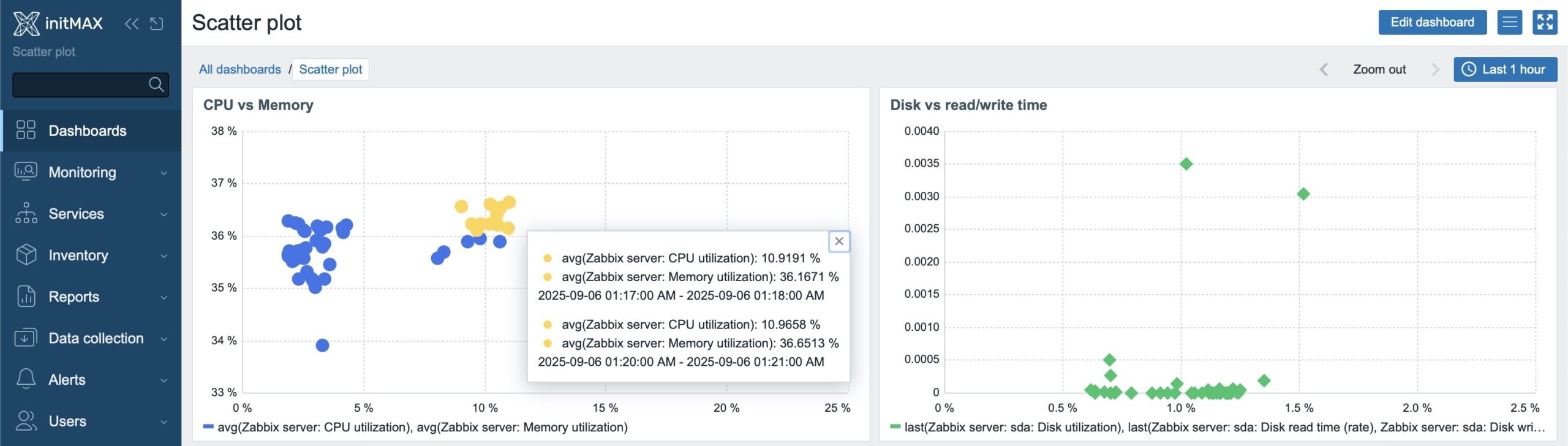
Simply put: you take two metrics (X and Y axis) and Zabbix will plot points for each host/time interval. At a glance, you can see correlations (or the lack of them), clusters of problematic machines, and anomalies that could easily be missed in a classic time-series chart.
Benefits
- Metric relationships: e.g., “when CPU increases, does RAM also increase?”
- Outliers: quickly detect servers that stand out.
- Visual triage: instantly see where to focus first.
How it works
- Datasets: multiple sets; each has an X-Axis item and a Y-Axis item.
- Host filtering: Host patterns / Host groups / Host tags.
- Aggregation: Aggregation interval (e.g., 1m) + function (e.g., avg) → one point per window.
- Appearance: choose marker and size; tooltips with values; time shift for period comparison.
Thresholds
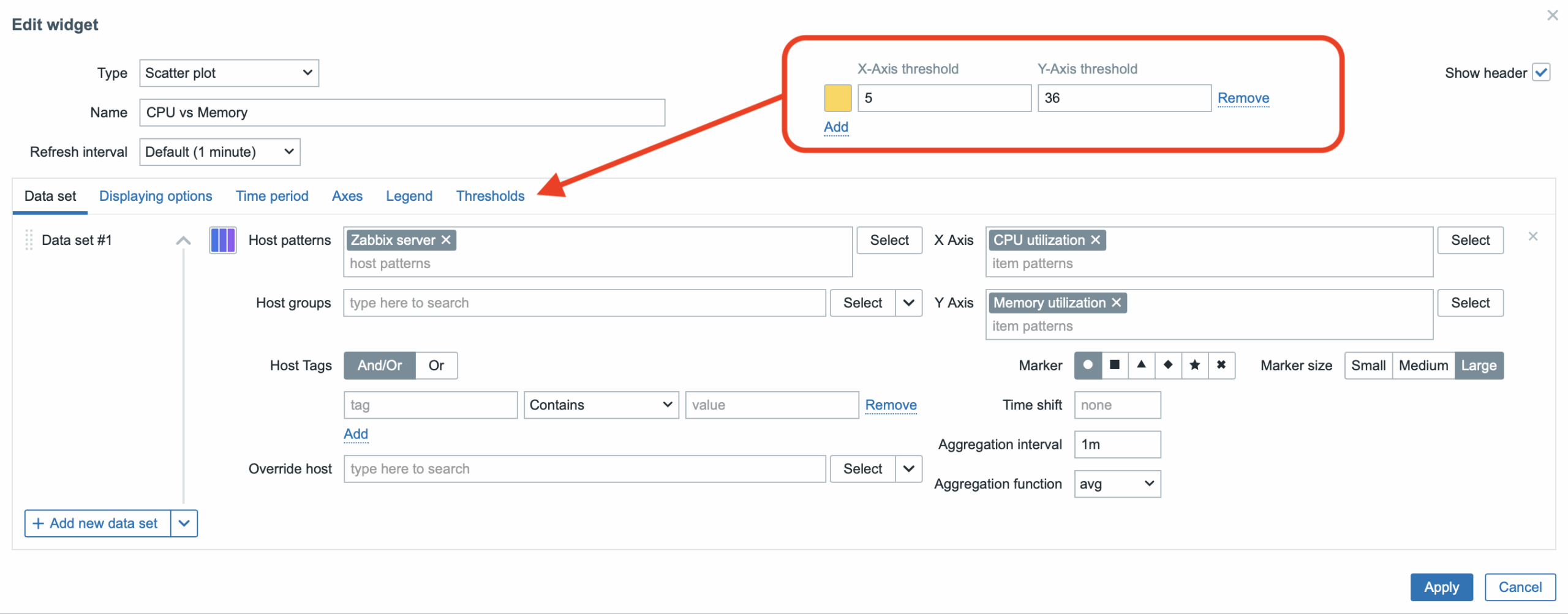
Combined conditions for X and Y change the point’s color, e.g., X ≥ 5 AND Y ≥ 36. Multiple rules = multiple colors → anomalies become instantly visible (see image).
Example Scenarios
- CPU load vs. Memory usage
X axis: average CPU load
Y axis: percentage of RAM used
→ Quickly shows whether hosts with high CPU also have high RAM usage. Great first diagnostic for “CPU bound” vs. “RAM bound.” - Disk usage vs. I/O latency
X axis: disk utilization (%)
Y axis: latency (ms)
→ Identifies servers with overloaded storage. The combination of high utilization + high latency is a red flag for I/O. - Network traffic vs. Error rate
X axis: outgoing/incoming traffic (bps)
Y axis: error rate (dropped packets, errors)
→ Finds machines with low traffic but many errors – typically bad links, duplex, MTU, or driver issues. - Response time vs. Availability (services/apps)
X axis: average response time (ms)
Y axis: availability (%)
→ Differentiates “slow but stable” vs. “fast but unreliable” services. A strategic view for prioritizing team effort.
ClickHouse backend and significant improvements for Elastic
A major new feature is support for ClickHouse as an optional storage backend for historical data. The main motivation is clearly its close connection to the new support for JSON data types—with this volume and structure of data, an analytical backend like ClickHouse makes perfect sense.
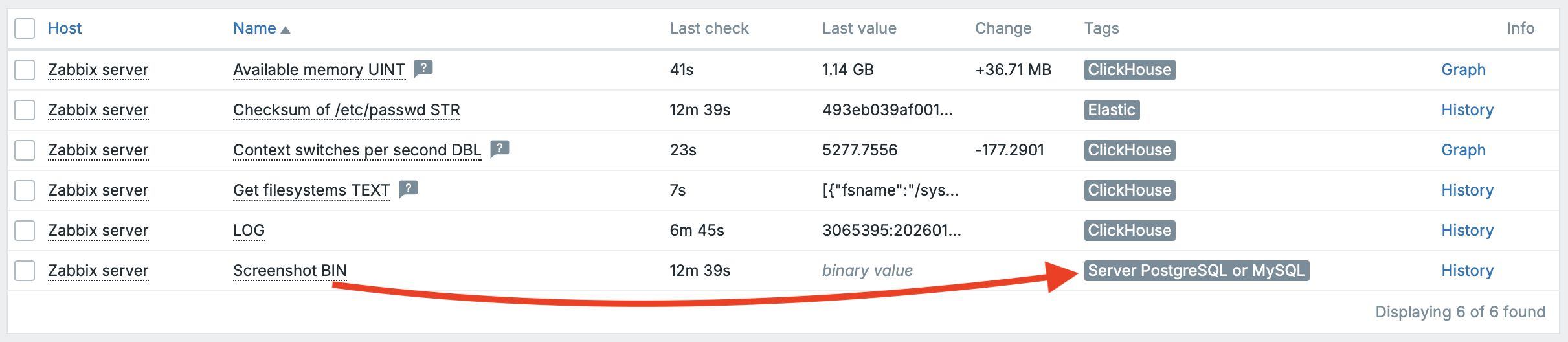
The concept and configuration are very similar to what many of you already know from the optional Elastic integration. Zabbix can store historical data in an alternative backend without changing the core architecture. ClickHouse can store all history data types except BIN, which covers the vast majority of both common and advanced use cases.
A big advantage is that you can combine Elastic and (now) ClickHouse and split data types based on what makes the most sense—while keeping PostgreSQL as the primary backend for most standard history.
A typical scenario could be, for example:
- LOG / TEXT / CHAR → Elastic (search, full-text, log analytics, and text-based observability queries)
- Numeric data (float/uint) → PostgreSQL (a stable, proven time-series backend for classic metrics and trends; simplicity, compatibility, and battle-tested operation)
- JSON → ClickHouse (high analytical performance for semi-structured data, aggregations, filtering, and wide queries over JSON structures)
And of course, you can adjust the strategy based on your priorities—e.g., if you want to push as much as possible to an analytical backend, or if you prefer the simplest architecture and use ClickHouse only where it brings the biggest impact (typically JSON).
Frontend configuration (Zabbix UI / frontend)
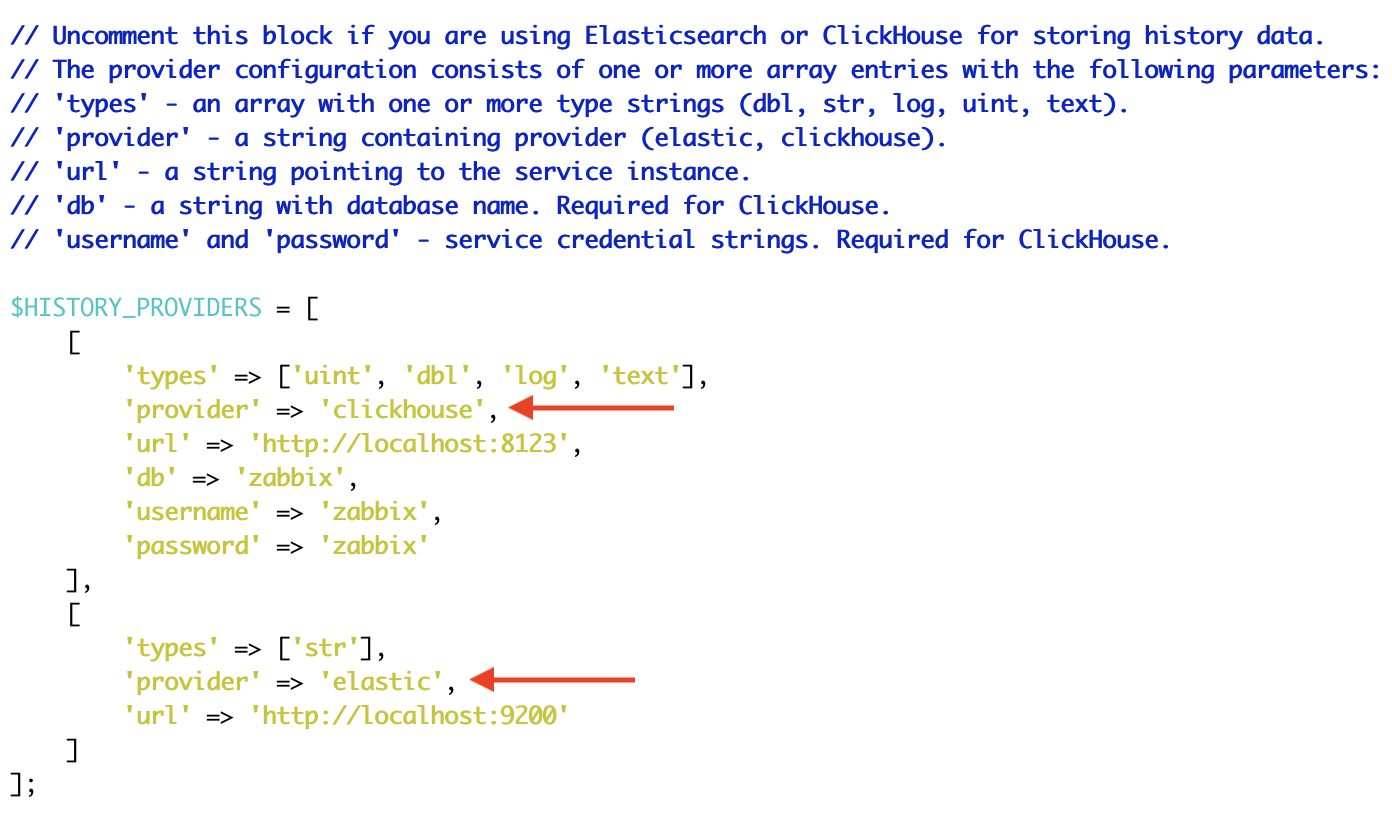
Frontend configuration is defined in /etc/zabbix/web/zabbix.conf.php using the $HISTORY_PROVIDERS array. Each backend (ClickHouse, Elastic) is listed as a separate item in this array—therefore the individual blocks are separated by commas (standard PHP syntax). In practice, you can set ClickHouse as the primary provider for selected value types and add another provider (e.g., Elastic) right below it for str.
Server configuration (Zabbix server)
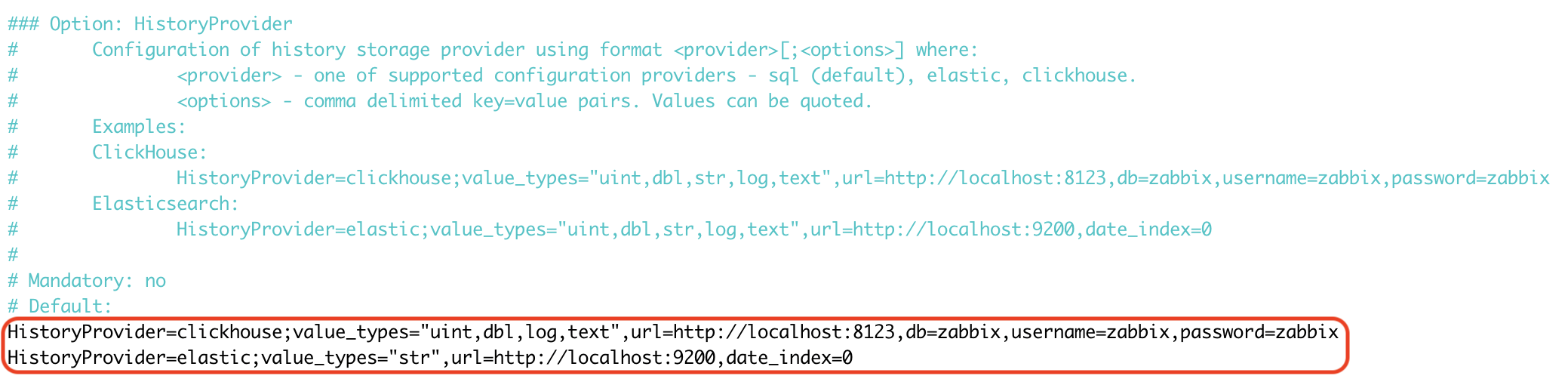
The second part of the configuration is in /etc/zabbix/zabbix_server.conf, where individual providers are defined on separate lines using the repeated HistoryProvider directive. Unlike the frontend, this is not a “list of items” but a configuration in the form provider;options, where the options themselves (url=..., db=..., username=...) are comma-separated.
Using these backends is also very easy to verify directly in the Zabbix server log—right at startup, Zabbix prints the list of active history providers (including the detected version and assigned value_types), so you immediately know where each type of historical data is being stored.

In the frontend, the data looks exactly the same—there is no UI-level difference whether historical data is stored in PostgreSQL, ClickHouse, or Elastic. Zabbix transparently displays the latest values, history, and graphs regardless of the backend used; the only exception is BIN values, which remain stored in the server’s primary database (PostgreSQL/MySQL).
Elasticsearch
The Elastic backend has also undergone significant internal changes—the biggest difference is in the way it communicates. It now relies more on connection reuse and other optimizations in the network layer and request handling. As a result, this backend is noticeably faster from Zabbix’s perspective, especially in environments with a high query rate and a large volume of stored data.
Multi-host connection string for PostgreSQL backend
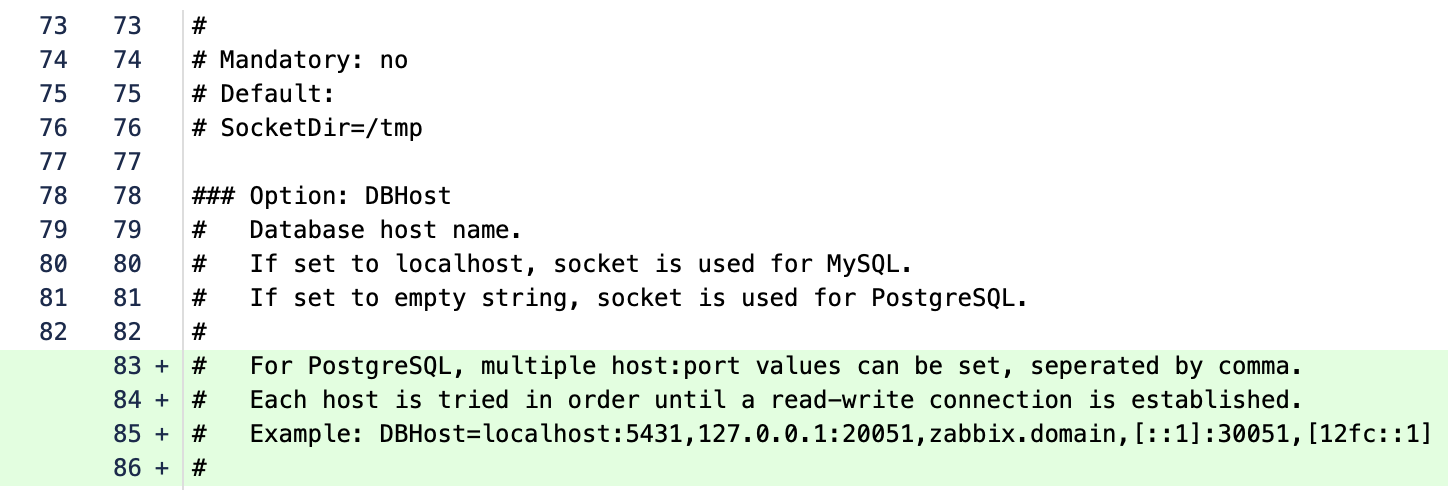
For us, this is one of the best practical improvements to the PostgreSQL backend so far. The ability to specify multiple host:port entries in DBHost (comma-separated) and let Zabbix automatically find the first available read-write node at startup significantly simplifies deployment and operations—especially in HA environments. In practice, this often means fewer dependencies on an external load balancer and a cleaner, more self-contained configuration directly within Zabbix.
New option to store data in JSON format
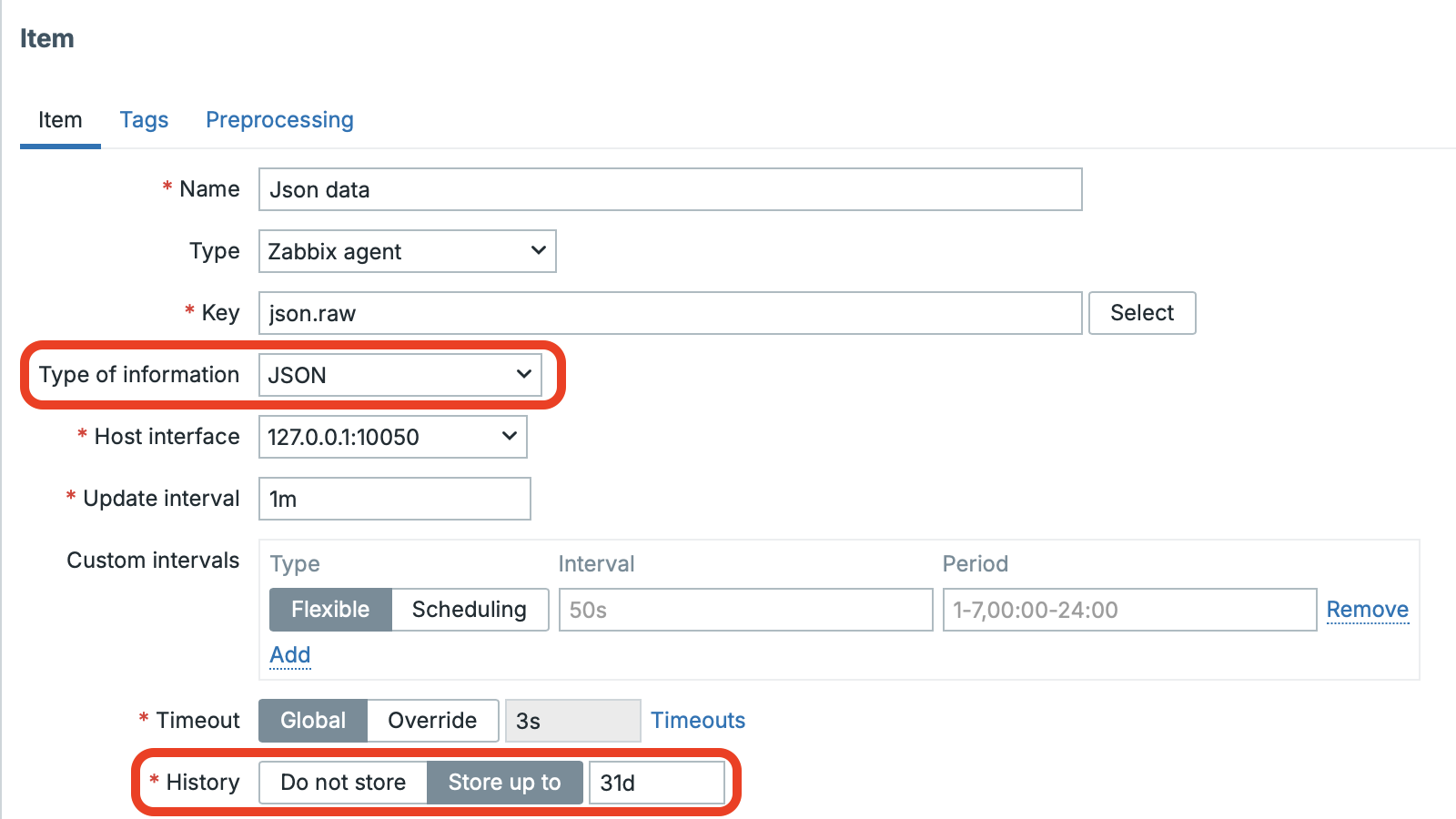
We’ve finally got it: in Zabbix’s (almost) native JSON world, there is now an option to store such data directly in the database — in JSON format. The feature is available on both the proxy and the server side. Conceptually, it’s similar to the Binary storage type we already know (used, for example, for storing screenshots). Partitioning support for the new table is included as well, and the change is also reflected in the Elastic implementation.
One more important advantage: unlike Binary storage, this type can be used not only for master items, but also for dependent items.
We see the primary use case in scenarios with a large number of master items. The maximum size of stored data per single write is 128 MiB.
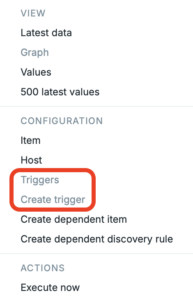
Just like with the Binary type (available since Zabbix 7.0), it is not possible to create triggers for this data type — and that’s not the purpose of storing data this way. The reason is that such triggers could put an extreme load on the server’s value cache. So this is primarily a practical capacity/performance limitation (to ensure the data fits into the memory used by the value cache), rather than something that would be impossible to implement technically.
Dashboard export and import have been added
Dashboard export and import are finally available. You could achieve something similar via the API before, but you had to map individual entities precisely by their IDs — otherwise the import would fail.
Now the UI provides two buttons: one for Export (in the familiar Zabbix export format) and one for Import.
You’ll find the Import button in the top-right corner of the dashboards overview, right next to Create dashboard.
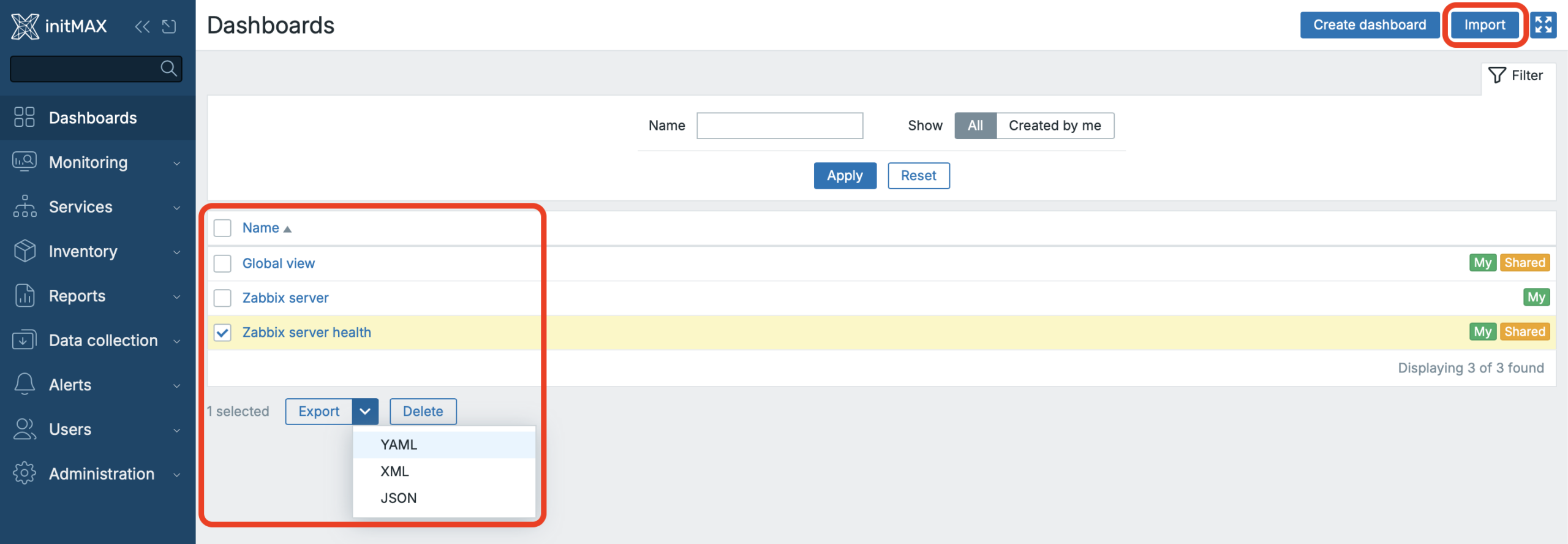
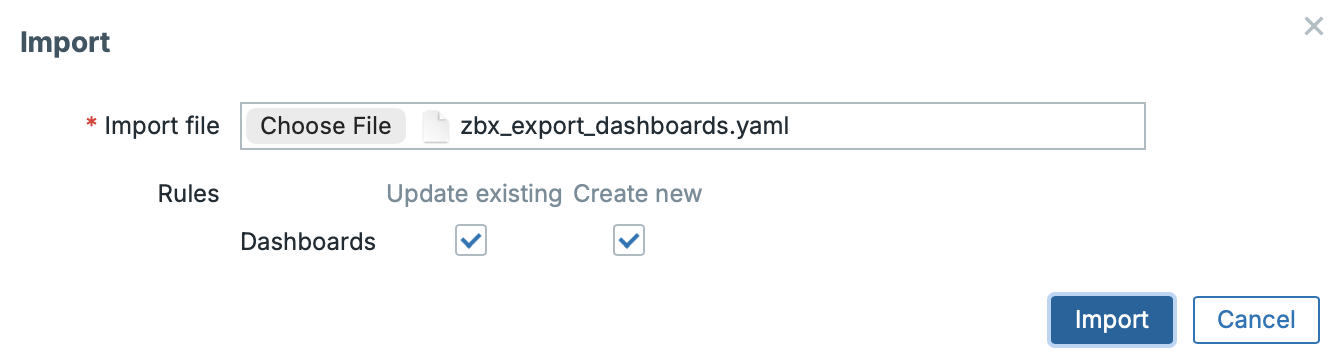
The import process itself is straightforward: you can create entirely new dashboards, and if they already exist, you can update the existing ones. The import also supports pages, if you use them within your dashboards.
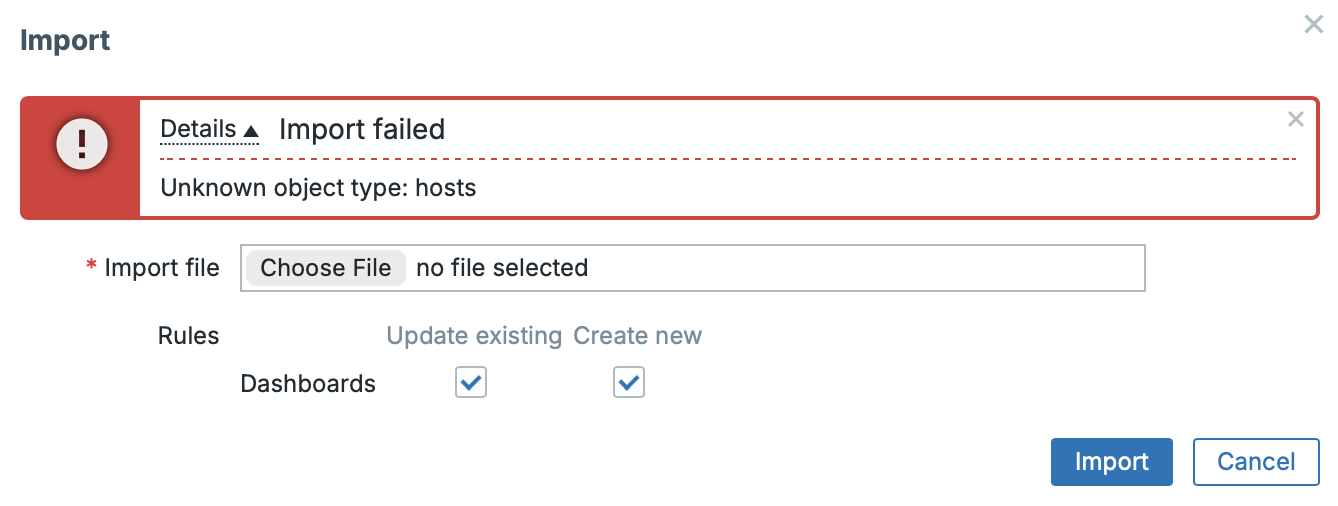
During import, individual objects are not matched by ID, but by name. In our example, the host was renamed from “Zabbix server” to “Zabbix server RENAMED”, and the system was then unable to find it. The fix is straightforward: you can adjust the mapping directly in the UI during import, or by editing the exported file.
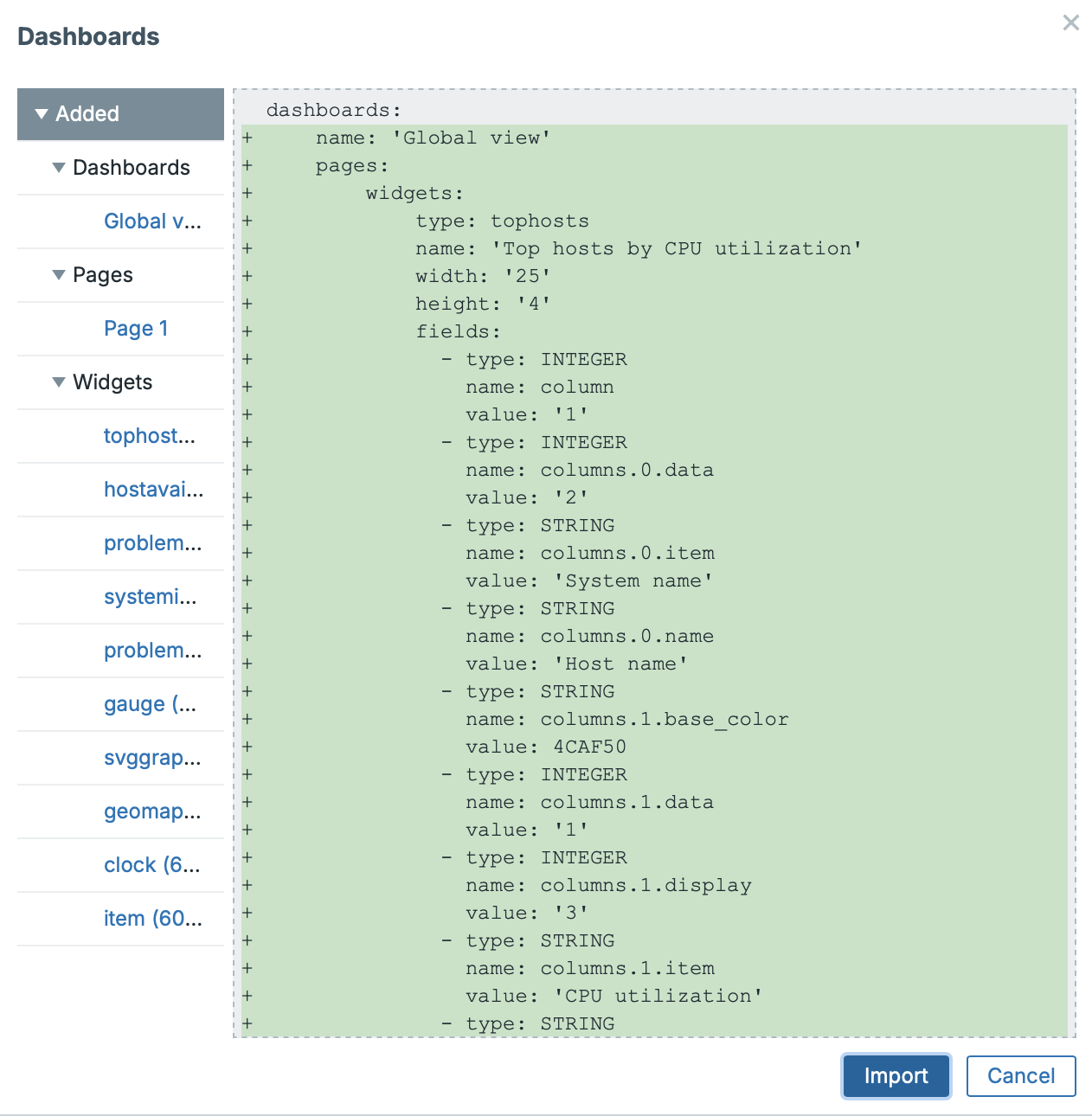
Before the actual import, you’ll also see a summary of what will be added, removed, and updated — including the specific changes.
GeoMap Clustering
In the GeoMap widget, you can now configure different host clustering behavior for your maps. You can choose between Auto (the previous/default behavior) and a new Zoom level option. With Zoom level, clustering changes at a defined zoom threshold — for example, if the threshold is set to 8, only a few host markers split into individual elements when you zoom in; if you lower it to 5, many more markers remain clustered, so the map stays grouped and cleaner until you zoom further in.
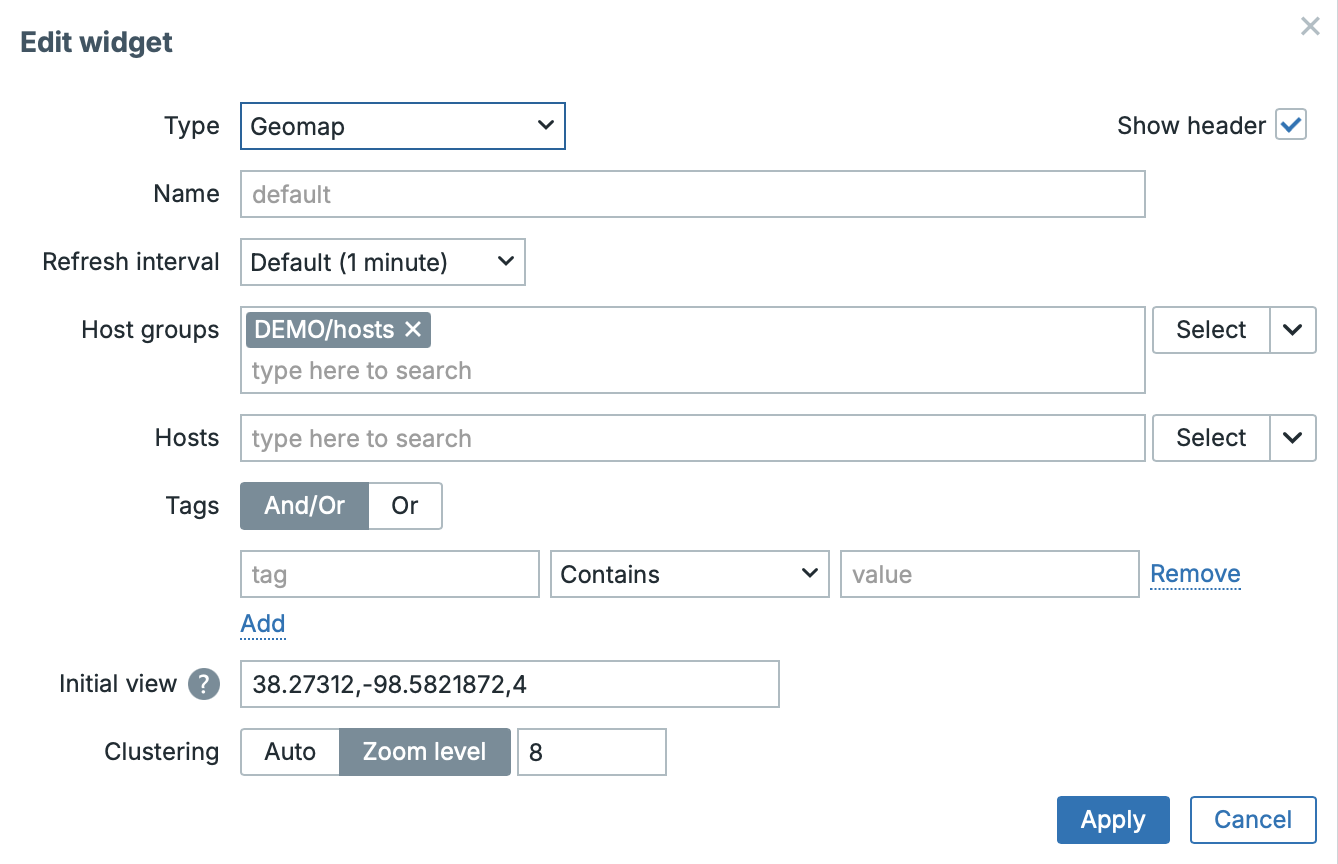
Example video for Geomap clustering
Visual Inherited Tag Indicator
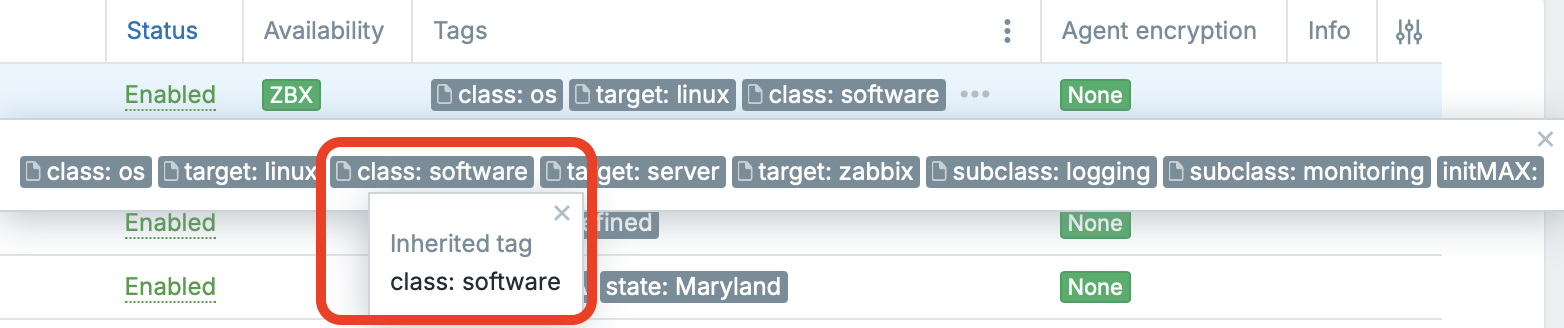
Zabbix now makes inherited tags a first-class part of the UI, so you can immediately tell whether a tag comes from a template/parent object or if it was created directly on the current level. This is especially handy in large environments where many objects share the same names and you rely on tags for routing, filtering, and consistent classification across hosts, templates, items, and triggers.
In the list views, inherited tags are marked with a small page/document icon on the left side of the tag pill, and when you hover over it you’ll see a tooltip like “Inherited tag” (as highlighted in the screenshot). Tags without this icon are not inherited — they were added directly at that level. In the example below, most tags are inherited, while initMAX is a non-inherited tag created locally, making the difference instantly visible.
Add custom tags to triggers created from trigger prototypes
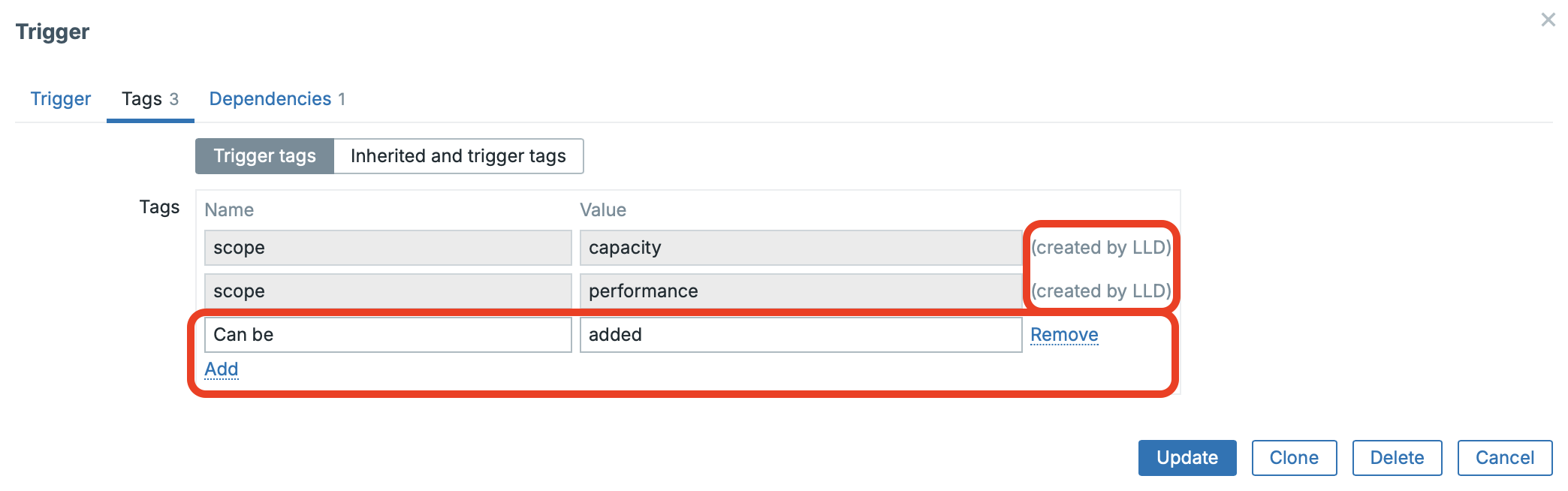
This feature allows you to assign custom tags to triggers that are created from trigger prototypes.
It is especially useful for controlling notifications (send / do not send alerts based on tags) and for labeling triggers by specific services, teams, or use cases, enabling more precise alert routing, filtering, and service-level correlation.
Customisable table views for some view pages
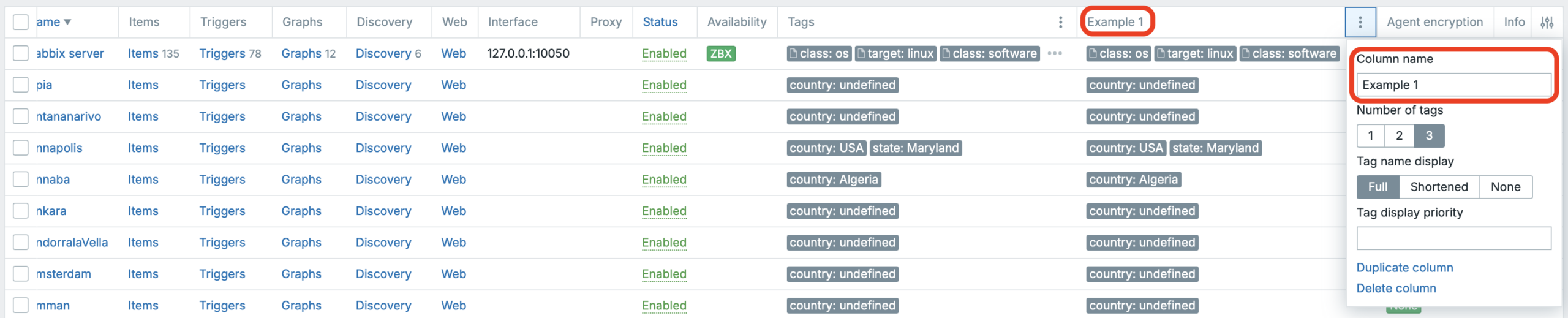
This feature lets you customize list tables on supported pages via the column settings in the top-right corner. You can show or hide entire columns and resize their widths; renaming is currently available only for duplicated tag columns (as shown in the screenshot).
Where it’s available:
- Monitoring → Hosts
- Monitoring → Latest data
- Monitoring → Problems
- Data collection → Hosts
- Data collection → Templates
All changes are stored in your user profile, so the layout is personal and not shared with other users. We also plan to update our User Filter Manager (https://www.initmax.com/product/user-filter-manager/) to support this functionality as well.
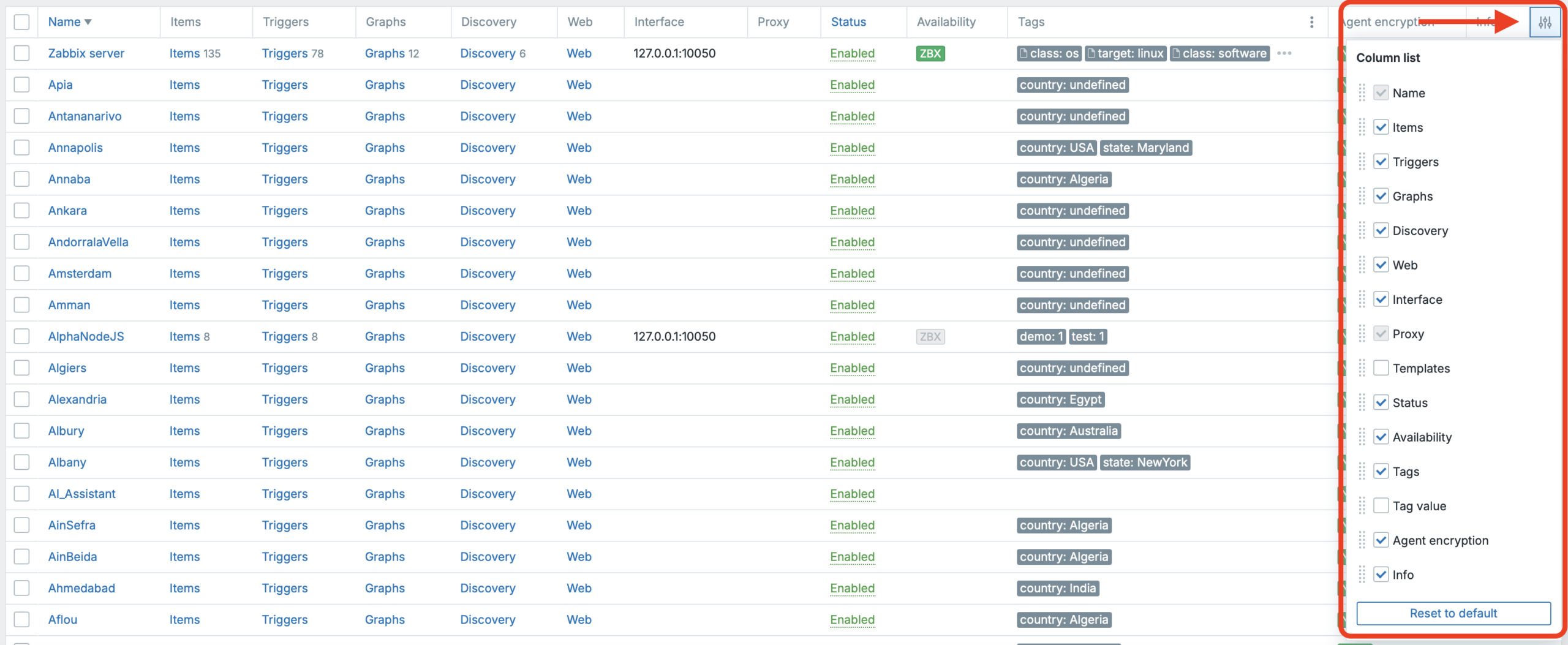
In the second screenshot, you can see an example of a duplicated “Tags” column, where we can apply filtering and also rename that duplicated tag column. This is a really cool feature and makes it much easier to keep tag-heavy views clean and focused.
Here’s a short video showing how you can resize columns and hide them in the Triggers view.
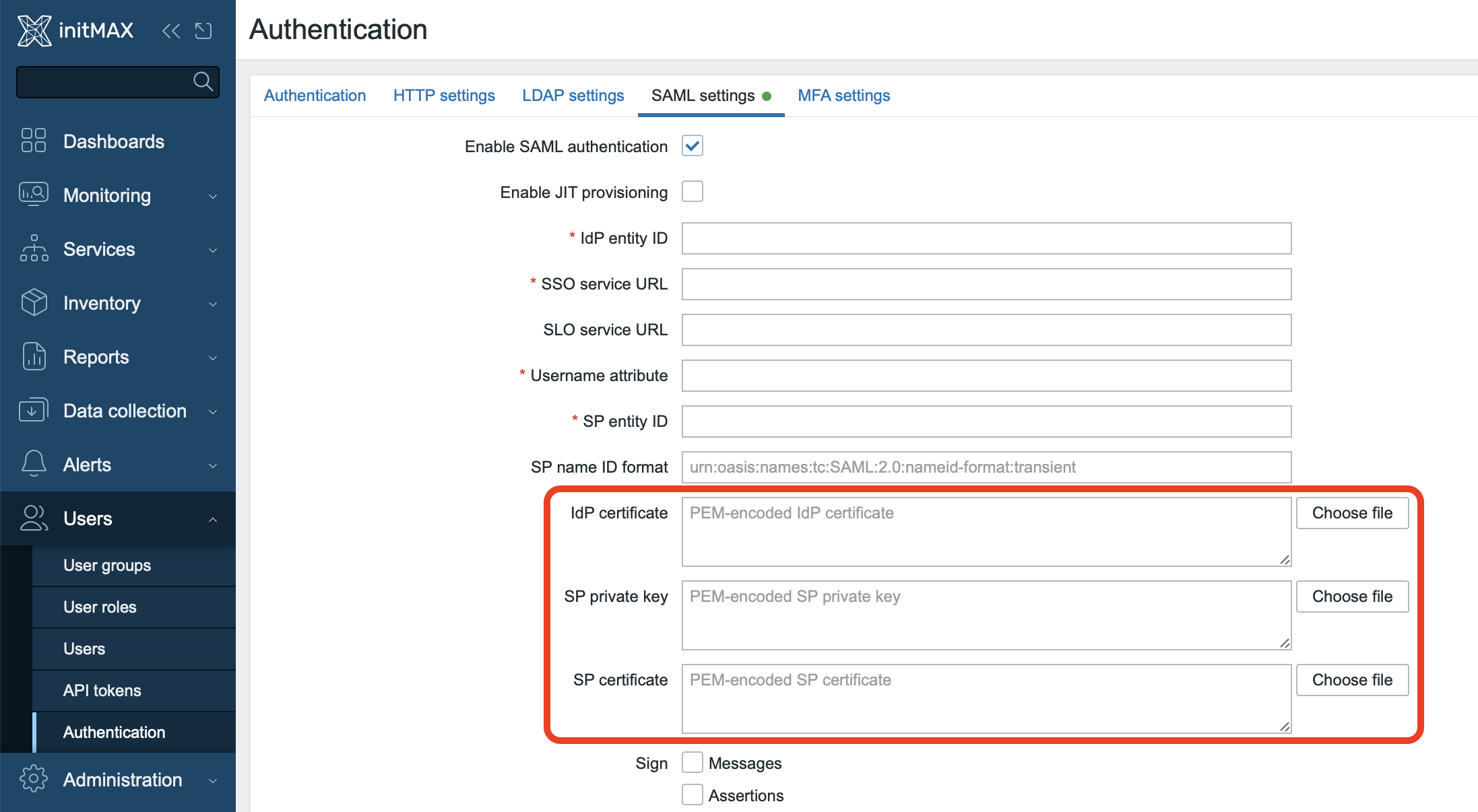
Storing SAML certificates directly in the database
You can now configure Zabbix to store SAML certificates directly in the database. Simply set the following option in the frontend configuration file (typically /etc/zabbix/web/zabbix.conf.php):
$SSO['CERT_STORAGE'] = 'database';This eliminates the need to upload certificates directly to the server’s file system. This solution brings several benefits, especially:
- Easy configuration directly via the web interface.
- Unified certificate management in High Availability (HA) deployments.
- Simplified administration of the entire SAML configuration.
Overview of minor improvements
New and updated templates
New Templates:
- OpenAI Platform by HTTP
- GitHub organization by HTTP
- Ribbon SBC Edge by HTTP
- Ribbon SBC SWe core by HTTP
- Ribbon SBC SWe CE by HTTP
- VeloCloud SD-WAN Edge by HTTP
Updated Templates:
- Proxmox VE by HTTP (nested LLD; SMART status mapping)
- GitHub repository by HTTP
- Microsoft 365 reports by HTTP (Copilot monitoring)
- Ciena 3906 by SNMP (filesystem + CPU load items)
- MySQL templates (new syntax support)
- RabbitMQ templates (healthcheck response code regex)
- Nextcloud by HTTP (item logic)
- NetApp AFF A700 by HTTP (macro names)
- MSSQL templates (additional GRANTs)
- Stormshield SNS by SNMP (protected host memory OID)
- Zabbix server/proxy health templates (ODBC poller error handling)
Zabbix Download and Other Useful Links
- Zabbix 8.0 is available for download here: www.zabbix.com/download
- Full documentation for the new version can be found here: https://www.zabbix.com/documentation/8.0/en/manual/introduction/whatsnew800
As official partners and strong enthusiasts of the Zabbix platform, we offer comprehensive, top-level services in all areas of Zabbix monitoring. If you’re interested in a live demonstration of Zabbix installations at our customers’ sites, we’d be happy to show you Zabbix in action.


Give us a Like, share us, or follow us 😍
So you don’t miss anything: